
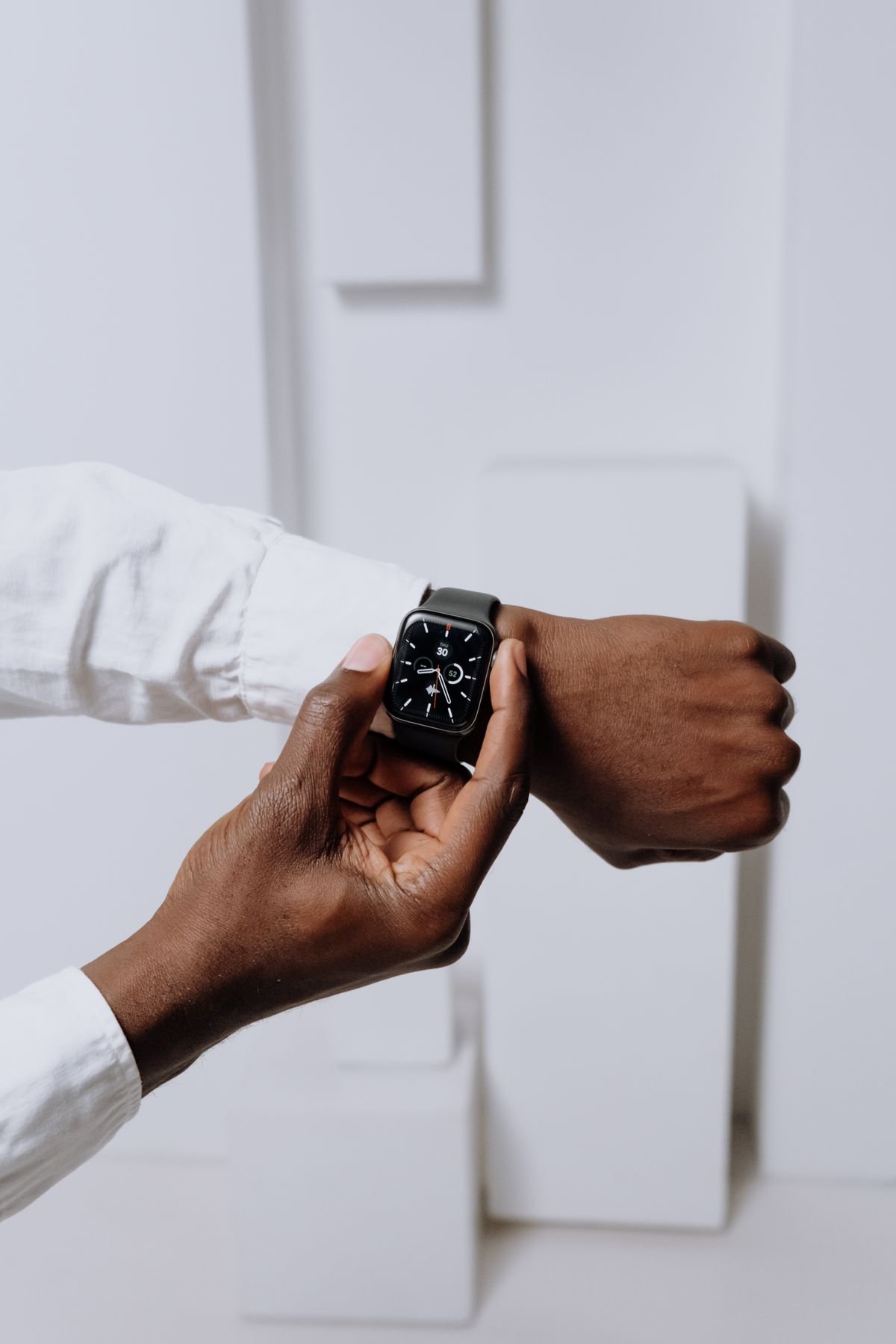
It is 3 in the morning. The house is dark, the phone is face down on the nightstand, and you are finally drifting off. Then your wrist buzzes. A group chat message. A delivery update. A reminder you set weeks ago and forgot. You are wide awake again, staring at a glowing screen, wondering why a device meant to help you sleep keeps waking you up. If you want to know how to stop smartwatch buzzing at night while sleeping, the good news is that you do not have to take the watch off or switch it off. You need the right quiet settings, with your alarm protected, and a quick test before you trust them overnight.
This guide walks through the fix for the main watch families. You will learn why watches buzz at night even in silent mode, how to set up Sleep Focus on Apple Watch, Do Not Disturb and Bedtime mode on Samsung and Pixel watches, and the equivalent quiet modes on Fitbit and Garmin. You will also learn how to keep your wake up alarm working, how to handle buzzes from haptics and health alerts, and what to check when a watch still buzzes after you thought you silenced it.
Why Your Smartwatch Buzzes at Night
A smartwatch buzzes because it is doing its normal job at the wrong hour. Notifications from your phone mirror to your wrist by default. Social apps, email, news, and messaging apps do not know you are asleep. If they are allowed to notify your phone, they are usually allowed to buzz your wrist too, unless a sleep or Do Not Disturb mode blocks them.
Some buzzes come from the watch itself, not from your phone. Timers, stopwatch alerts, calendar reminders, and health alerts such as high heart rate warnings can bypass ordinary notification settings. Bedtime reminders, sleep score summaries, and charging alerts can also fire in the middle of the night. A watch that seems silent for messages can still buzz for one of these system alerts.
Haptics add another layer. Many people turn off sound and assume the watch is silent, but a strong vibration on a wrist is enough to wake a light sleeper. Sleep modes usually soften or stop haptics for notifications, while keeping a gentle vibration for the alarm. Understanding that split is the key to a quiet night that still wakes you on time.
How to Stop Smartwatch Buzzing at Night While Sleeping: The Core Setup
Start with one principle that applies to every brand. Use a scheduled sleep mode, not a manual mute you have to remember each night. A schedule turns quiet on at bedtime and off in the morning, every day, without you thinking about it. Manual silent mode works for one night and gets forgotten on the next.
Set the schedule to start about 30 minutes before your usual bedtime and end about 15 minutes after your alarm. The early start stops evening messages from buzzing while you wind down. The later end stops a 6 in the morning email from waking you before your alarm does. Then choose who can break through. Most sleep modes let calls from favorites or repeated calls from the same number come through for emergencies. Keep that list short.
Next, trim the apps that can reach your wrist at all. You do not need every app on your phone mirrored to your watch. Turn off wrist notifications for social media, shopping, games, and news. Keep messaging from close contacts, calls, and your alarm app. Fewer allowed apps means fewer chances for a stray buzz, even if a sleep mode setting gets reset by an update.

Apple Watch: Sleep Focus and Bedtime Settings
On Apple Watch, the main tool is Sleep Focus. Open the Watch app on your iPhone, tap Focus, then Sleep. Set a schedule with your bedtime and wake time. When Sleep Focus is on, notifications are silenced on both your phone and your watch, the watch screen dims, and only allowed people and apps can break through.
Check two settings that people often miss. First, open the Health app, tap Browse, then Sleep, and review your sleep schedule and alarm. Make sure the wake up alarm is on and set to vibrate, or sound if you prefer it. A Sleep Focus schedule without an alarm will silence the night and then fail to wake you, which is worse than a buzz.
Second, review allowed notifications inside the Sleep Focus settings. By default, some apps may still be allowed. Remove social and news apps from the allowed list. Keep only calls from favorites if you want emergency contact, and keep your alarm app allowed. Also check the Noise app and heart rate notifications in the Watch app, since health alerts can still buzz if their thresholds are set very sensitively. If you get repeated heart rate alerts at night and you feel well, talk to a clinician before you simply turn them off, because those alerts can matter.
Test Your Apple Watch Before Bed
Set an alarm for one minute from now and put the watch in Sleep Focus. Ask someone to send you a test message, or send one from another device. The message should not buzz. When the minute passes, the alarm should vibrate. If the message buzzes, an app is still allowed in Sleep Focus. If the alarm does not vibrate, check that the alarm is enabled and that haptics are on in Settings, then Sound and Haptics.
Samsung Galaxy Watch: Do Not Disturb and Sleep Mode
On a Samsung Galaxy Watch, open Settings on the watch, then Notifications, and turn on Do Not Disturb. Better still, set it to sync with your phone. Open the Galaxy Wearable app on your phone, tap Watch settings, then Notifications, and turn on the option to sync Do Not Disturb with your phone. When your phone enters its bedtime mode, the watch follows.
Samsung watches also offer a dedicated Sleep mode in newer software. Swipe down to Quick Settings, look for the Sleep or Bedtime icon, and turn it on. Sleep mode dims the screen, silences notifications, and keeps sleep tracking running. It is the closest Samsung equivalent to Apple Sleep Focus, and it is worth using instead of plain Do Not Disturb when it is available on your model.
Check exceptions carefully. In Do Not Disturb settings you can allow calls from favorites or repeated callers. That is sensible for emergencies, but an overly broad exception list defeats the purpose. Also check individual app notifications in the Galaxy Wearable app. Turn off wrist notifications for apps that buzz late at night, such as social media and shopping apps, even if Do Not Disturb is on, so a settings reset does not bring them back.
Pixel Watch and Wear OS: Bedtime Mode
On Pixel Watch and other Wear OS watches, Bedtime mode is the main quiet tool. Swipe down from the watch face to open Quick Settings, then tap the Bedtime mode icon, which looks like a moon with stars. Bedtime mode silences notifications, dims the screen, and keeps the watch dark and quiet until you turn it off or the schedule ends it.
For a schedule, open the watch Settings app, tap Notifications or Digital Wellbeing, and look for Bedtime mode schedule options. Set the same window you use on your phone, starting before bedtime and ending after your alarm. Pixel watches also tie into the phone Bedtime mode in the Clock app, so set the phone schedule too and make sure the two match. A mismatch is a common reason a watch buzzes when the phone stays quiet.
Review notification permissions in the Watch app on your phone. Open the companion app, tap Notifications, and turn off wrist alerts for apps you do not need at night. Pay special attention to timers and calendar reminders, which can buzz even in Bedtime mode if they are treated as alarms. If a timer you set in the evening keeps buzzing at night, cancel it before bed or set it to silent in the timer app.

Fitbit and Garmin: Quiet Modes That Still Track Sleep
Fitbit devices use Do Not Disturb during a scheduled sleep window. Open the Fitbit app on your phone, tap your profile picture, tap your device, and look for Do Not Disturb or Sleep Mode settings. Turn on Do Not Disturb and set it to follow your sleep schedule. Sleep tracking keeps running while notifications stay silent, so you lose no sleep data by silencing the watch.
On Garmin watches, open Settings on the watch, then System, then Do Not Disturb, and set a schedule. Garmin also lets you choose whether Do Not Disturb turns on during a scheduled sleep window. Check that the sleep window in Garmin Connect matches your real bedtime. If the window is wrong, the watch will buzz happily through the hours you actually sleep.
Both brands can still buzz for alarms, timers, and some health alerts. That is by design. If you want a truly silent night with no alarm, turn off the alarm as well, but do that deliberately. The safest default is a quiet watch with a working alarm, and you should test it once before you rely on it for an early start.
Keep Your Alarm Working While Everything Else Stays Quiet
The fear that stops many people from using sleep modes is simple. What if the alarm does not go off? On every major platform, alarms are treated as exceptions to Do Not Disturb and sleep modes. The alarm will sound or vibrate even when notifications are silenced. The problems come from details, not from the rule itself.
First, make sure the alarm is actually enabled. Many watches hold several old alarms, and the one you think is active may be switched off. Open the alarm app on the watch, delete old alarms you no longer use, and keep one clear wake up alarm with the time and days you need.
Second, check the alarm volume and vibration. On Apple Watch, check Sound and Haptics and make sure haptic alerts are on. On Samsung and Pixel watches, check that the alarm is set to vibrate, or sound plus vibrate, rather than silent. A watch in Theater mode on some Wear OS models can silence alarms too, so avoid Theater mode overnight unless you know your model keeps alarms active in it. Bedtime mode is the safer choice.
Third, keep the watch charged and worn snugly. A watch that dies at 4 in the morning cannot wake you at 6, and a loose watch may vibrate too weakly to notice. Charge before bed if the battery is below about 40 percent, or use a bedtime charging routine that leaves enough charge for the night and the alarm.
When the Watch Still Buzzes: Troubleshooting Checklist
If your watch still buzzes after you set up a sleep mode, work through this checklist in order. Most cases are fixed by one of these steps.
- Check that the sleep schedule is on and that the times are right, including morning and evening settings and the days of the week it applies to.
- Check that the phone and the watch are using the same sleep or Do Not Disturb schedule, and that syncing between them is turned on where the brand offers it.
- Look for an allowed app or contact that is breaking through, and remove social, news, and shopping apps from the allowed list.
- Cancel evening timers, stopwatches, and calendar reminders that may fire overnight, or move them to the morning.
- Check health alerts, including heart rate and noise alerts, and adjust thresholds only after considering whether the alert matters for your health.
- Restart the watch and the phone after a software update, since updates can reset notification permissions and sleep schedules.
- Check that Theater mode is off, since it can behave differently from Bedtime mode on some models.
If a single app keeps buzzing despite every setting, turn off its wrist notifications entirely in the companion app. You can still read its messages on your phone in the morning. A watch that buzzes for one noisy app all night is not doing its job, and removing that app from your wrist is a fair trade for unbroken sleep.
Charging, Placement, and Better Sleep Habits
Where the watch sits matters almost as much as its settings. A watch on a bedside table can still buzz loudly enough to wake you if it vibrates against a hard surface. If you charge overnight, place the watch on a soft cloth or its charger stand, away from the edge of the table, and turn on any bedside or nightstand mode that keeps the screen dim.
Many people sleep better when the phone also stays quiet. Put the phone face down, out of easy reach, and let the watch handle only the alarm. A phone that lights up and buzzes on the nightstand will wake you even if the watch stays silent, because the two devices work as a pair. Silence both, and the bedroom stays dark.
Give the new setup a week before you judge it. The first night often feels strange because you keep checking whether the alarm will work. By the third or fourth night, the quiet becomes normal, and you will notice the difference in how you feel in the morning. Sleep tracking data from that week will also be cleaner, because fewer wake ups mean fewer gaps and false readings.

Conclusion: Quiet Nights, Reliable Mornings
Learning how to stop smartwatch buzzing at night while sleeping is really about using the sleep mode your watch already has, on a schedule, with a short allowed list and a tested alarm. Set Sleep Focus, Do Not Disturb, or Bedtime mode to start before bed and end after your alarm. Trim wrist notifications to the apps that truly matter. Test the setup once with a one minute alarm and a test message, and fix any app that breaks through before you rely on it overnight.
Do that, and your watch goes back to being a helpful sleep tracker instead of a 3 in the morning alarm clock for other people’s messages. Your mornings stay reliable, your nights stay quiet, and you wake up to the alarm you chose, not to a buzz you did not. For related fixes, see our guide to why a TV keeps disconnecting from WiFi, our tips to keep a laptop cool on a bed without a cooling pad, and our guide to why a laptop gets hot and shuts down.
Frequently Asked Questions
Will Sleep Focus or Do Not Disturb silence my alarm?
No. Alarms are treated as exceptions on Apple, Samsung, Pixel, Fitbit, and Garmin devices, so your wake up alarm will still sound or vibrate. Test it once with a one minute alarm to be sure it is enabled and set to vibrate or sound as you prefer.
Why does my watch buzz even when sound is off?
Sound off does not always mean vibration off. Haptics can still buzz for notifications, timers, and health alerts. Use a scheduled sleep mode rather than a manual mute, and trim the apps allowed to notify your wrist, so vibration stops for everything except your alarm.
Should I use Theater mode instead of Bedtime mode?
Bedtime mode is safer for overnight use. Theater mode mutes the screen and notifications, but on some Wear OS models it can also silence alarms. Use Bedtime mode or Sleep Focus for sleep, and save Theater mode for movies and meetings.
Can I still track sleep if I silence the watch completely?
Yes. Sleep tracking uses sensors and silent data logging, not alerts. Silencing notifications improves tracking in one way, because fewer wake ups mean fewer gaps in the data. Just keep the watch charged and worn snugly through the night.
What if one app keeps buzzing despite sleep mode?
Turn off that app wrist notifications entirely in the companion app on your phone. Check its allowed status in the sleep mode settings first, then remove it from your wrist if it still breaks through. You can read its messages on your phone in the morning.