If your AirPods sound full and rich on an iPhone but strangely quiet on your Android phone, you are not imagining the difference. This is one of the most common complaints from people who mix Apple earbuds with an Android device, and the good news is that it is almost always fixable with settings, not new hardware. In this guide you will learn exactly how to make AirPods louder on Android, starting with the fastest checks and working up to the one hidden setting that solves the problem for most people.
Why AirPods Sound Quieter on Android Than on iPhone
To fix the problem it helps to understand what causes it. On an iPhone, your phone and your AirPods share a single volume control. Turn the volume up on the phone and the earbuds get louder in lockstep, because Apple designed both sides of the connection.
Android works differently. Your phone has its own media volume, and your AirPods keep their own separate internal volume. These two volume levels are supposed to stay in sync, but with AirPods they often drift apart. The result is a confusing situation: your phone shows the volume at maximum while your earbuds are quietly playing at half strength. No amount of pressing the volume up button on your phone will fix it, because the phone thinks the job is already done.
There are two more reasons this happens. First, the special chip inside AirPods that handles smooth pairing and volume handshakes with iPhones does not do the same job on Android, so the connection is more basic. Second, Android phone makers each handle Bluetooth audio a little differently. A Samsung Galaxy, a Google Pixel, and a OnePlus phone can all behave slightly differently with the same pair of AirPods. That is why one fix works for one person and a different fix works for someone else, and why this guide walks through them in order.
Do These 60 Second Checks First
Before touching any advanced setting, run through these quick checks. They solve the problem more often than you would expect.
1. Turn up both volume controls. This is the heart of the issue, so start here. Press the volume button on your phone, tap the small arrow or dots to expand the full volume panel, and make sure the Media slider is at maximum. Then turn up the volume on the AirPods themselves. On AirPods Pro second generation you can swipe up on the stem to raise the volume. On older models you can ask your voice assistant or adjust it from the connected device controls. Many people discover that their phone was at full volume while their earbuds were sitting at 50 percent.
2. Check the fit. A loose seal lets bass escape and makes everything sound thin and quiet. If you use AirPods Pro, try a different ear tip size. The right tip should feel snug without pressure. Even a small gap changes the sound dramatically.
3. Disconnect and reconnect once. Open your Bluetooth settings, disconnect the AirPods, wait a few seconds, and connect again. This clears temporary glitches in the audio routing that can cap the volume.
If the sound is still too quiet, move on to the main fix below.
Turn Off Absolute Volume in Developer Options
This is the fix that works for the largest number of people, and it directly targets the volume sync problem described above. Android has a feature called Absolute Volume that tries to merge your phone volume and your Bluetooth device volume into one control. With AirPods, this syncing often goes wrong and quietly caps your maximum volume. Turning it off gives you separate control of both volumes again.
Follow these steps carefully:
- Open the Settings app on your Android phone and go to About Phone.
- Find Build Number and tap it seven times. You will see a message saying you are now a developer. You may need to enter your PIN first.
- Go back to the main Settings screen, open System, then tap Developer Options.
- Scroll to the Networking section and find Disable absolute volume. Turn this toggle on.
- Turn Bluetooth off and back on, then reconnect your AirPods.
Now test your audio. You should be able to raise the volume from your phone and from the AirPods independently, and the combined maximum should be noticeably louder. If the sound somehow gets worse or the volume behaves strangely, simply go back and turn the toggle off again. On some phones, especially Samsung models, leaving Absolute Volume on and using the phone maker volume sync feature instead works better, which brings us to the next section.
If you enjoy unlocking hidden Android features, our guide on how to schedule a WhatsApp message on Android shows another useful trick your phone can do.
Check the Volume Settings Buried in Your Phone
Android hides several volume related settings in different menus, and any one of them can hold your AirPods back.
Media Volume Sync on Samsung phones
On Samsung Galaxy phones, go to Settings, then Connections, then Bluetooth. Tap the three dots in the corner and look for Media Volume Sync. Turn it on. This makes the phone control the earbud volume directly, the way it works on an iPhone, and it fixes the quiet audio problem for many Samsung owners.
Volume limits and sound caps
Many Android phones include a volume limit feature meant to protect your hearing. Go to Settings, then Sound or Sound and vibration, and look for anything called volume limit, media volume limit, or a hearing protection cap. If it is turned on, either turn it off or raise the limit and test again.
App level volume
Some apps keep their own volume independent of the system. Spotify, YouTube, and many video apps have in app volume sliders or normalization settings. Open the app you use most, check its playback or audio settings, and make sure nothing is turned down or set to a quiet normalization mode.
Sound effects and enhancements
Features like Dolby Atmos, adapt sound, or custom equalizer presets can change perceived loudness. Try turning these off temporarily. If the volume jumps up, you have found your culprit and can decide which enhancement is worth keeping.
For more ideas on coaxing extra sound out of your gadgets, see our guide on making an iPhone alarm louder for heavy sleepers, which covers similar volume troubleshooting principles.
Clean Your AirPods and the Charging Case
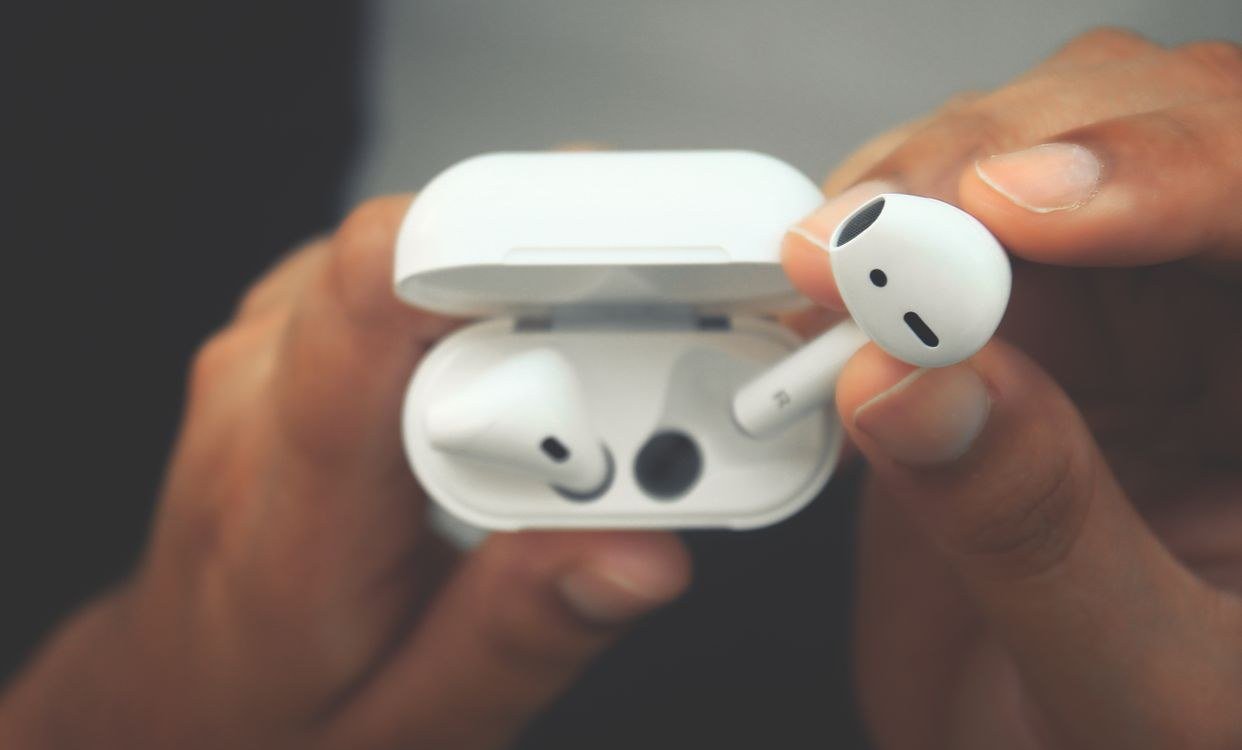
This step sounds too simple, but earwax is one of the most common physical causes of quiet AirPods. The speaker mesh on each earbud is tiny, and even a thin film of wax or pocket lint can muffle the sound noticeably. Because the buildup happens gradually, you may not notice the volume dropping over weeks.
Here is the safe way to clean them:
- Wipe the outside of each earbud with a soft, dry, lint free cloth.
- Use a soft bristled brush, like a clean dry toothbrush, to gently loosen debris from the speaker mesh.
- For stubborn wax around the edges, a dry cotton swab works. Never push wax deeper into the mesh.
- Do not use water, soap, or sharp objects such as pins or toothpicks. These can damage the mesh or push debris inside.
- Wipe the charging contacts inside the case as well, since dirty contacts can cause charging and connection quirks that affect performance.
After cleaning, put the AirPods back in your ears and test. Many people are surprised by how much louder a two minute cleaning makes them.
Try an Equalizer or Volume Booster App
If the hardware and settings are all correct and you still want more loudness, software can help. Two kinds of apps are useful here.
Equalizer apps
Equalizer apps let you reshape the sound, and a gentle boost in the mid and high frequencies makes audio feel louder without distorting it. Popular free options on the Google Play Store include Wavelet and Poweramp Equalizer. Start with a modest preset and adjust to taste. Avoid pushing every slider to maximum, which causes harsh distortion and can damage the tiny drivers over time.
Volume booster apps
Volume booster apps, such as Volume Booster GOODEV, can push audio beyond the normal system maximum. These can be genuinely useful in noisy places like a busy train. Use them with care: sustained listening at very high volumes can damage your hearing, and extreme boosting can distort the sound or strain the earbuds. Treat a booster as an occasional tool, not an everyday setting.
Update, Forget, and Reset Your AirPods
When software glitches are the cause, a fresh start often clears them.
Check for firmware updates. AirPods update their firmware automatically when connected to an iPhone, iPad, or Mac, but there is no manual update button on Android. If you can borrow an Apple device for a few minutes, connect your AirPods to it and leave them near the device while connected to power. Outdated firmware can cause all kinds of odd audio behavior on Android.
Forget and pair again. On your Android phone, go to Bluetooth settings, tap the gear or info icon next to your AirPods, choose Forget, then put the AirPods back in pairing mode and connect fresh. This rebuilds the Bluetooth profile from scratch.
Factory reset the AirPods. Place both earbuds in the charging case and open the lid. Press and hold the setup button on the back of the case for about 15 seconds until the status light flashes amber and then white. Close the lid, wait a moment, then pair them with your Android phone as if they were new. A full reset clears corrupted pairing data that a simple reconnect does not touch.
When Quiet Volume Is Not a Settings Problem
If you have worked through every step above and the AirPods are still quiet, consider these possibilities.
One earbud quieter than the other. Check the audio balance in your phone accessibility settings to make sure sound is centered. Then inspect the quieter earbud for wax. If one side stays noticeably quieter after cleaning and resetting, the speaker itself may be failing.
Very old or worn AirPods. Batteries degrade over two to three years of regular use, and aging drivers can lose output. If your AirPods are several years old and every fix has failed, worn hardware is a realistic explanation.
Water or physical damage. Sweat and rain exposure can damage the speaker mesh over time. If the quietness started after a workout in heavy rain or an accidental wash, damage is likely.
Your hearing. This is worth saying honestly. If every pair of earbuds and every device sounds quiet to you lately, the issue may be hearing related rather than device related. There is no shame in getting a quick hearing check.
Quick Recap: How to Make AirPods Louder on Android
Making AirPods louder on Android comes down to a short troubleshooting ladder. Start by raising both the phone media volume and the AirPod volume independently, since the two controls fall out of sync. Next, turn off Absolute Volume in Developer Options, which is the single fix that helps most people. Then check your phone maker settings like Media Volume Sync and any volume limits, clean the earwax from the speaker mesh, and try an equalizer app if you want extra punch. Finish with a forget and reset if glitches persist. Work through these steps in order and your AirPods should sound as loud on Android as they do on an iPhone.
Frequently Asked Questions
Why are my AirPods so quiet on Android?
The most common reason is that Android and AirPods maintain separate volume levels that fall out of sync. Your phone can show maximum volume while the earbuds themselves sit much lower. Turning off Absolute Volume in Developer Options and raising both volumes independently usually fixes it.
Will turning off Absolute Volume damage my AirPods?
No. The setting only changes how volume commands are sent between your phone and your earbuds. It does not change power delivery or push the hardware beyond safe limits. You can turn it back on at any time with no lasting effects.
Can I make AirPods louder than the maximum on Android?
Yes, with a volume booster app from the Play Store, but use one sparingly. Pushing audio past the designed maximum can distort sound and, more importantly, sustained loud listening can damage your hearing over time.
Do AirPods work well with Android phones?
For music and calls they work fine, but you lose Apple only features such as automatic device switching, Siri, spatial audio controls, and easy firmware updates. If those matter to you, earbuds made for Android may be a better fit.
Why is one AirPod louder than the other on Android?
Usually it is a fit or cleanliness issue. Check that the audio balance is centered in your accessibility settings, try a different ear tip size, and clean the speaker mesh of the quieter earbud. If the imbalance survives a reset, the speaker may be damaged.