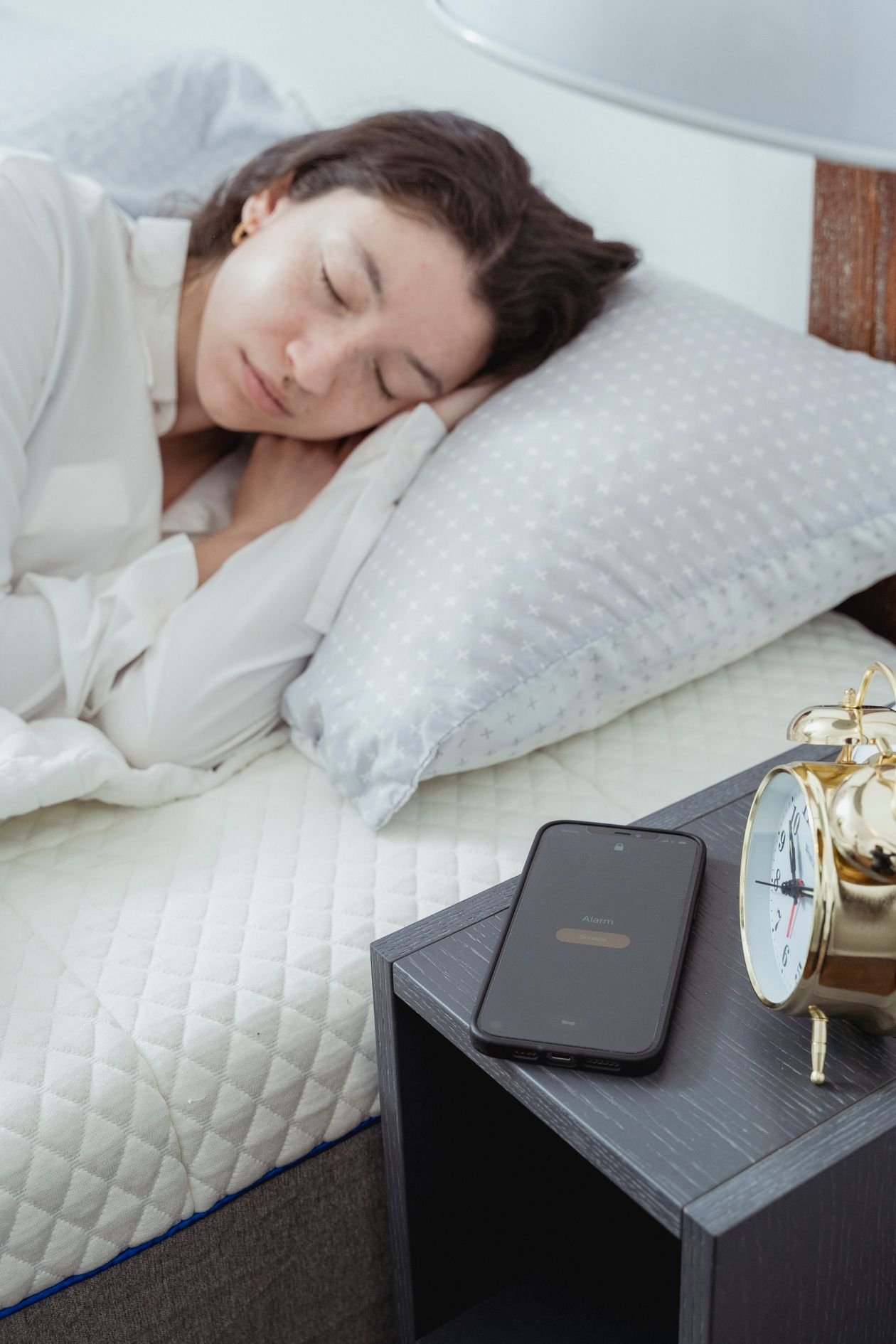
If you sleep through your iPhone alarm more mornings than you care to admit, you are not alone. Learning how to make iPhone alarm louder for heavy sleepers is one of the most searched iPhone fixes in the US, and most guides stop at telling you to turn the volume up. The truth is that the volume slider is only the start. Apple hides the real alarm volume in a different menu, two separate settings can quietly turn your alarm down overnight, and the tone you picked might be the reason you keep sleeping through it. This guide walks through every fix that actually works, from the exact settings to change tonight to the backup systems that make oversleeping nearly impossible.
How to make iPhone alarm louder for heavy sleepers using the right settings
Before you buy anything or download an app, fix the core volume controls. Most people who complain about a quiet alarm are adjusting the wrong slider entirely, so this is where every heavy sleeper should start.
Max out the Ringtone and Alerts slider
Your iPhone alarm does not use the media volume. The volume buttons on the side of your phone control music and videos by default, not your alarm. The alarm volume lives in a separate slider. Open Settings, tap Sounds and Haptics, then drag the Ringtone and Alerts slider all the way to the right. You will hear a sample tone as you drag, which tells you the true maximum loudness of your alarm. Set a test alarm for one minute from now and confirm it rings at that level before you trust it overnight.
Turn off Change with Buttons
On the same screen you will see a toggle called Change with Buttons. When it is on, pressing the side volume buttons during the day also moves the Ringtone and Alerts slider. That means a quiet afternoon of turning down videos can silently lower your alarm too. Switch this toggle off so your alarm volume stays locked at maximum no matter what you do with the buttons during the day. This one setting fixes a huge number of mystery quiet alarm mornings.
Pick a tone that cuts through deep sleep
Volume is only half the battle. Some built in tones are genuinely hard to sleep through, while others are designed to wake you gently and will never stir a heavy sleeper. Open the Clock app, tap Alarm, tap Edit, choose your alarm, then tap Sound to preview the options. The loudest and most jarring choices are the classics: Alarm, Radar, and Beacon. These use harsh, high frequency patterns that cut through sleep far better than modern soft tones. Avoid Silk, Chimes, and Slow Rise if you sleep deeply, because their gentle fade in can finish before you even register them.
If none of the built in tones do it for you, make a custom one. Record or pick an aggressive sound clip, export it as a ringtone with GarageBand on your iPhone, then select it in the alarm Sound screen. Keep the clip loud and abrupt at export, because alarms do not apply any loudness leveling. One more trap to check: make sure the Sound field is not set to None. An alarm with no sound only vibrates, and heavy sleepers will never feel that through a mattress.
Turn off the two settings that quietly lower your alarm
Plenty of people wake up to an alarm that sounds like it is ringing from inside a drawer, even though the slider is at maximum. In most cases one of these two settings is the culprit.
Disable Attention Aware Features
This is the sneakiest one. On iPhones with Face ID, a feature called Attention Aware Features watches for your face and lowers the volume of alerts when it thinks you are looking at the phone. Fall asleep while scrolling and your phone may decide you are still engaged, then duck the alarm volume all night. Go to Settings, tap Face ID and Passcode, and switch Attention Aware Features off. Your alarm will now always play at the full volume you set.
Understand silent mode and Focus honestly
Here is good news that many guides get wrong. The silent switch on the side of your iPhone does not mute your alarms, and Do Not Disturb or Sleep Focus does not block them either. Clock alarms always sound. So if your alarm was quiet, silent mode was not the cause, and you do not need to worry about leaving the ringer on overnight. If an alarm ever fails to sound at all, the real cause is almost always the Sound set to None, the alarm itself switched off, or a software glitch fixed by a restart.
Make the sound hit harder with placement and vibration
Physics matters as much as settings. A phone buried in bedding or lying face down on a soft mattress can lose a surprising amount of volume. Put your iPhone on a hard surface like a wooden nightstand or a ceramic tile, which reflects and amplifies the sound instead of absorbing it. Keep the speaker grille clear of cases or fabric. If you wear an Apple Watch to bed, turn on strong haptics for alarms as well, because a sharp tap on the wrist reaches you through a channel that sound cannot. In the alarm edit screen, set Vibration to one of the stronger patterns so the phone itself buzzes hard against the hard surface.
For the deepest sleepers, the nuclear option is distance. Place the phone across the room so the alarm still sounds at full volume but you have to physically get out of bed to silence it. Once you are standing, going back to sleep becomes a choice rather than an accident.
Build a backup system so one alarm can never fail you
A single alarm is a single point of failure. Heavy sleepers do best with layers, so that sleeping through one sound does not mean sleeping through the morning.
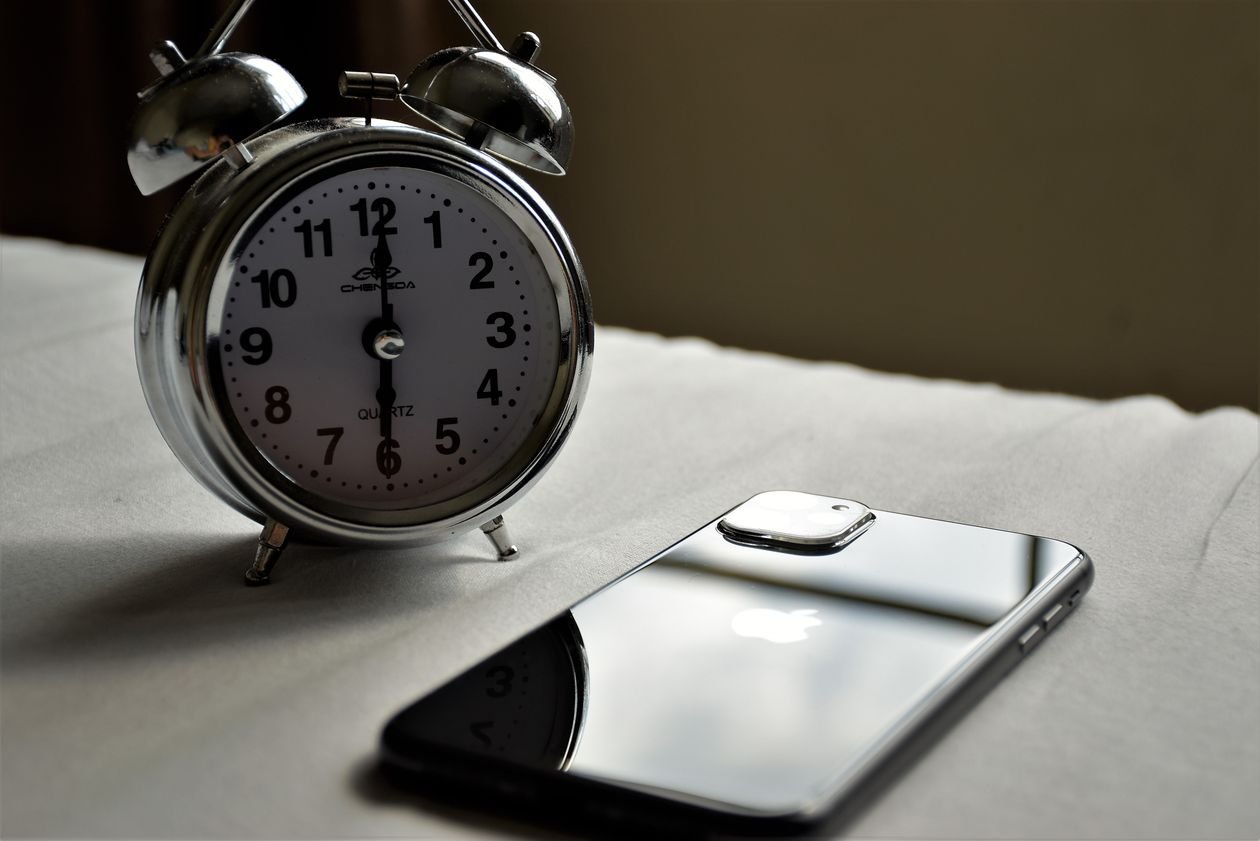
Set two alarms five or ten minutes apart with different harsh tones, so the second one catches you if your brain tunes out the first. Add a second device if you have one: an old phone, a tablet, or a smart speaker in the same room, all set for the same time. A ten dollar classic twin bell alarm clock on the nightstand is still one of the most effective backup alarms ever made, and it keeps working even if your phone dies overnight. Plug your iPhone into its charger before bed so a low battery can never be the reason you oversleep.
Try a smarter alarm app or a wake up light
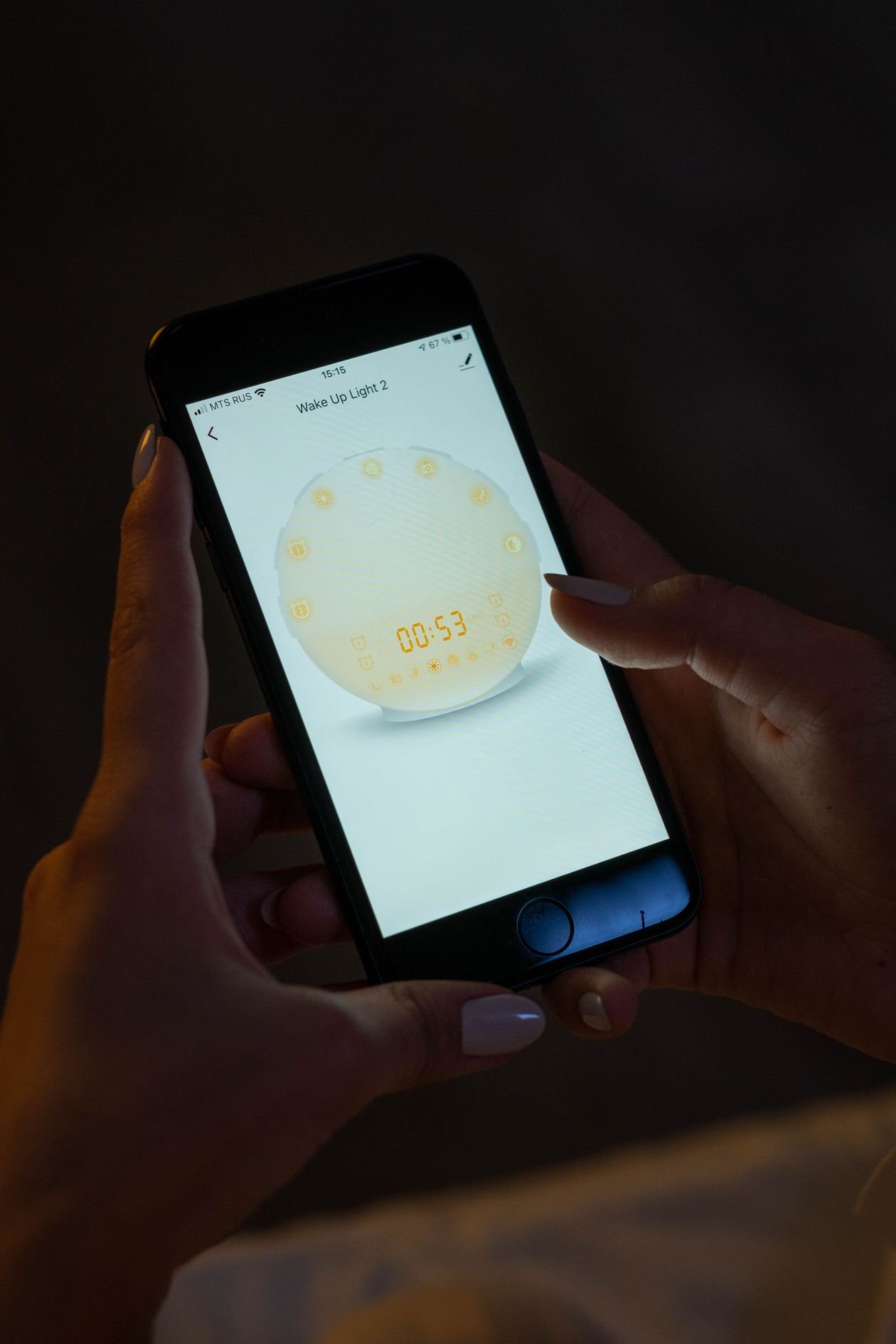
When settings and placement are not enough, change the game. Apps like Alarmy refuse to turn off until you solve math problems, take a photo of your bathroom sink, or shake the phone dozens of times, which forces your brain fully awake. Sleep tracking apps can also wake you during a lighter sleep phase within a window you choose, so the same volume feels far more effective. If sound alone never works for you, a sunrise simulation wake up light gradually brightens the room before the alarm time, adding light to the assault on your sleep.
Pair the phone with a Bluetooth speaker for a genuine volume boost beyond what the small phone speaker can produce. Place the speaker near your bed, connect it before sleep, and test that the alarm actually routes through it. And if your brain is still foggy in those first minutes, dictate your morning notes instead of typing them. Our guide to using voice typing to write faster shows how to get your thoughts down while you are still waking up.
Your heavy sleeper alarm checklist
Run through this list once tonight and your mornings change starting tomorrow.
- Drag the Ringtone and Alerts slider to maximum in Settings and Sounds and Haptics.
- Switch off Change with Buttons so daytime volume presses cannot lower it.
- Pick a harsh tone like Alarm, Radar, or Beacon, and confirm Sound is not set to None.
- Turn off Attention Aware Features under Face ID and Passcode.
- Put the phone on a hard surface with the speaker clear, or across the room.
- Set a second alarm five or ten minutes later, plus one backup device or classic clock.
- Plug the phone into its charger and run a one minute test alarm before bed.
The bottom line on making your iPhone alarm louder for heavy sleepers
Learning how to make iPhone alarm louder for heavy sleepers comes down to three layers: set the true alarm volume correctly, remove the settings that secretly lower it, and add backups so no single failure ruins your morning. The Ringtone and Alerts slider, the Change with Buttons toggle, and Attention Aware Features take two minutes to fix and solve most quiet alarm problems on their own. Layer a harsh tone, smart placement, and a second alarm on top, and even the deepest sleeper gets a system that is very hard to sleep through. Once you are reliably awake, decide what the day is actually for with our guide to prioritizing tasks with the eisenhower matrix.
Frequently asked questions
Why is my iPhone alarm so quiet even at full volume?
The side buttons control media volume by default, not alarm volume. Open Settings, tap Sounds and Haptics, and drag the Ringtone and Alerts slider to maximum. Also check Attention Aware Features, which can lower alert volume overnight, and make sure you picked a harsh tone rather than a gentle one.
Does silent mode make the iPhone alarm quieter?
No. The silent switch does not mute alarms, and Do Not Disturb or Sleep Focus does not block them. Clock alarms always sound at the Ringtone and Alerts volume. If your alarm was quiet, the cause was the volume slider, the tone choice, or Attention Aware Features, not silent mode.
What is the loudest iPhone alarm sound?
The classic tones Alarm, Radar, and Beacon are the loudest and most jarring built in options. They use harsh high frequency patterns that cut through deep sleep. Avoid gentle tones like Silk, Chimes, or Slow Rise if you are a heavy sleeper, and never leave the Sound field set to None.
Can I make my iPhone alarm louder than the maximum volume?
No setting pushes the phone speaker past its hardware maximum, but you can get more effective loudness. Pair a Bluetooth speaker, place the phone on a hard reflective surface, add a second device or a classic twin bell clock, or use an alarm app that demands you solve puzzles to turn it off.
Why did my iPhone alarm not go off at all?
The most common causes are the alarm toggle switched off, the Sound set to None so it only vibrates, or a software glitch. Check both, restart the phone, and set a one minute test alarm. Keep the phone charged overnight so a dead battery is never the reason.