Picture the scene. A landlord, a client, or a tax office wants a copy of a form, and the only copy you have is a paper one on your desk. There is no scanner in the room, no time to buy one, and no wish to install yet another app that wants your contacts and a monthly fee. Your phone is already in your hand, and that is enough.
Learning how to scan documents with phone without an app is simpler than most people expect, because both iPhone and Android already include scanning tools in apps you already own. On iPhone, the Notes app can scan a page and save it as a PDF. On Android, Google Drive and many built in camera apps can do the same job. The trick is not a hidden feature. It is a clean photo, straight edges, even light, and a tidy filing habit afterward.
This guide walks through the whole job, from the first photo to a readable PDF you can send with confidence. No new app, no subscription, and no scanner required.

How to Scan Documents With Phone Without an App: The Short Answer
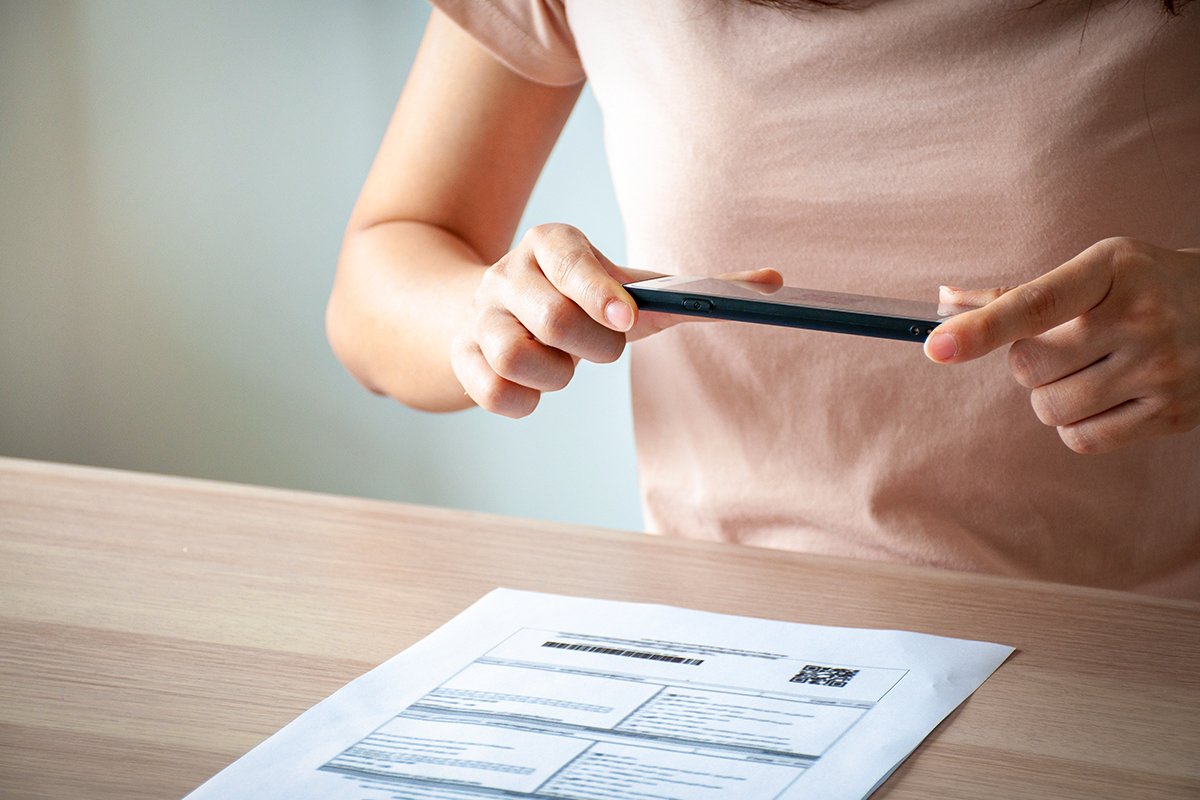
On iPhone, open Notes, start a new note, tap the camera button, choose Scan Documents, and hold your phone over the page until the yellow frame locks onto the edges. Save the scan, then share it as a PDF. On Android, open Google Drive, tap the plus button, choose Scan, and photograph each page in the same way. If your Android camera includes a document mode, you can also photograph the page there and save the result as a PDF from your gallery. In both cases, shoot in good daylight, hold the phone flat above the page, keep all four corners in frame, and check every page before you send it.
That short answer covers the mechanics. The rest of this guide covers the details that turn a crooked phone photo into a document that looks like a real scan.
Why Your Phone Already Works as a Scanner
Modern phones do far more than take a picture when you point them at paper. The camera finds edges, corrects perspective, boosts contrast, and straightens a page that was photographed at a slight angle. That processing is why a careful phone scan can look clean enough for business use, even though you never touched a flatbed scanner.
The built in tools have one more advantage over many free scanner apps. They do not push you toward a paid upgrade, watermark your pages, or upload your private papers to a stranger server by default. A scan made in Notes or Drive stays in your own account, under the same privacy controls as your other files. For receipts, contracts, and identity papers, that difference matters.
There are limits, and honesty helps here. A phone scan will not match a high end office scanner for a faded book page or a very large drawing. It will handle letters, forms, receipts, invoices, school papers, and most everyday documents with ease. If a page is glossy, crumpled, or printed in very faint ink, take extra care with light and angle, and check the result at full size before you send it.
Scan on iPhone Using Notes
Notes is the easiest no app route on iPhone, because it is already installed and its scanner is genuinely good. Open Notes and start a new note. Tap the camera icon above the keyboard, or in the toolbar, and choose Scan Documents from the menu.
Place the page on a flat surface with a plain background. A dark table works well, because the phone can see the white page edges clearly against it. Hold the phone directly above the page, parallel to it, with all four corners visible on screen. Notes will usually detect the page automatically and capture it when the frame turns yellow and steady.
If the automatic capture grabs the wrong edges, tap the shutter button to capture manually, then drag the four corner handles onto the true corners of the page. That manual step is worth the extra seconds. A scan with a cropped corner or a chunk of table included looks careless, while a neatly cropped page looks professional.
After the first page, Notes asks if you want to keep scanning. Keep going for a multi page document, in page order, and tap Save when you finish. Give the note a clear name, such as the document title and the date, so you can find it later. To send it, open the scanned document, tap Share, and choose Save to Files or Mail as a PDF. Notes saves the whole scan as one PDF, which is exactly what most recipients expect.
Two iPhone tips make a visible difference. First, turn off flash for most paper. Flash creates a bright hotspot and deep shadows that ruin contrast. Natural daylight from a window, or a room light from two sides, gives a far cleaner result. Second, use the color filter options after scanning. The Color filter suits most printed pages, Grayscale suits forms and handwritten notes, and Black and White suits crisp text pages where you want maximum readability. Try Color first, and switch only if the result looks washed out or muddy.
Scan on Android Using Google Drive
Google Drive includes a scanner on most Android phones, and it is the most reliable built in route across brands. Open Drive, tap the plus button, and choose Scan. The camera opens with a document frame. Hold the phone flat above the page, keep the corners in view, and tap the shutter button when the page looks straight.
Drive lets you crop after capture, just like Notes. Drag the corners to the page edges, choose a color or grayscale filter if offered, and tap Done. For the next page, tap the plus button again and repeat. When the whole document is captured, tap Save, give the file a clear name, and choose a folder. Drive saves the result as a PDF, ready to share by link or by email.
Some Android phones also include a document mode in the camera app itself. On Samsung phones, for example, the camera may offer a Document option, or the Gallery app may offer a save as PDF choice after you photograph a page. On Pixel phones, Google Photos and Drive cover the same job. If your phone offers both routes, use Drive for multi page documents, because it keeps pages in order in one PDF. Use the camera route for a single quick page when speed matters most.
Android users should also check one setting before an important scan. Make sure Drive is set to upload over WiFi only if you have a limited mobile plan, and confirm the save location before you close the app. A scan saved to a random folder is a scan you will hunt for later, usually at the worst possible moment.

How to Photograph a Page So It Looks Like a Scan
The app matters less than the photograph. A scanner app cannot rescue a dark, tilted, blurry photo, and a good photo needs almost no fixing at all. Follow these habits and your scans will look consistently clean.
Light comes first. Shoot near a window in soft daylight, or under two room lights placed on opposite sides of the desk. Avoid a single lamp to one side, which throws a shadow across the page, and avoid direct sun, which bleaches one corner and leaves the rest dull. If you see your own shadow on the page, move to the side or raise the phone a little higher.
Angle comes second. Hold the phone parallel to the page, not tilted toward you. Tilt turns a rectangle into a trapezoid and forces the app to guess where the edges are. If your arms get tired, rest your elbows on a stack of books on either side of the page, or prop the phone on a small tripod. Steady hands matter more than a steady camera model.
Distance comes third. Hold the phone far enough back that all four corners fit comfortably in frame, with a small margin of table around the page. Do not zoom in digitally, because digital zoom softens text. If small print looks blurry, move a little closer physically and retake, rather than pinching to zoom.
Preparation comes fourth, and it is the step most people skip. Flatten the page under a heavy book for a minute if it curls. Smooth out creases gently. Remove paper clips, sticky notes, and anything that casts a shadow. For a book or a bound document, press it flat with one hand while you shoot with the other, and accept that the center fold may need a second, closer shot.
Finally, check every page at full size before you send the PDF. Open the scan, pinch to zoom on the smallest print, and look for blur, missing corners, or cut off lines. Retaking one page now takes ten seconds. Apologizing for an unreadable scan later takes far longer.
Turn Your Scans Into Clean, Searchable PDFs
A good scan is only half the job. A good file name and a sensible folder turn a one off scan into a document you can actually find again. Name files the way you will search for them later. A name like Invoice March 2026 supplier name beats a name like Scan 1 every time. Add the year first if you file by year, so files sort in order automatically.
For multi page documents, keep pages in order and check the order before saving. It is easy to scan page three before page two when you are in a hurry, and the mistake is embarrassing when the recipient notices it first. A quick flip through the PDF after saving catches the error in seconds.
Text recognition is a bonus worth knowing about. On iPhone, text in a Notes scan becomes searchable in Notes and in Files, so you can find a document by a word inside it. On Android, Drive can search text inside PDFs as well, once the file has been processed. You do not need a separate OCR app for everyday searching. If you need a fully editable text document, copy the scanned PDF into a word processor and use its text recognition feature, or retype short passages by hand rather than trusting an automatic conversion with numbers and names.
Security deserves a moment too. Scans of passports, bank letters, and signed contracts should never be shared by open chat links or left in a shared downloads folder. Send them by the channel the recipient asked for, delete the phone copy once the official copy is filed, and avoid scanning sensitive papers on a borrowed phone. For routine business papers, a simple filing system beats a clever one. Our guide to a digital filing system for small business shows how to build folders that stay usable as the pile grows.
Common Problems and Quick Fixes
Blurry text usually means movement or too little light. Brace your arms, add light from a second direction, and retake without flash. If the same page stays blurry, wipe the camera lens. A smudged lens is a surprisingly common cause, and a quick wipe with a soft cloth fixes it instantly.
Cut off corners usually mean the phone was too close or the auto crop guessed wrong. Move back slightly, capture manually, and drag the corner handles yourself. A small margin of table around the page is better than a missing line of text.
Shadows across the page usually mean one sided light or your own body blocking the window. Move to the other side of the table, add a second light, or shoot near a larger window. For glossy paper, tilt the page very slightly so reflections fall away from the camera, and never use flash on laminated pages.
Pages that look gray or washed out usually need a filter change. Try Grayscale for forms, Black and White for crisp text, and Color for pages with stamps, signatures, or colored headings. If a signature looks faint in Black and White mode, switch back to Color, because color mode preserves the ink better.
Files that are too large usually come from very high resolution photos saved as images instead of PDFs. Saving as a PDF through Notes or Drive compresses the pages sensibly without hurting readability. If a PDF is still huge, check whether you photographed blank pages or included the table around every page. A tight crop alone can cut file size sharply.
When a Phone Scan Is Not Enough
Phone scanning covers most everyday needs, but it has honest limits. Very large plans, fragile archive papers, and documents that must meet a strict legal filing standard may still need a proper scanner. If a recipient specifies a resolution, a file format, or a certified copy, follow that specification rather than improvising with a phone.
For everything else, the phone in your pocket is a capable scanner that costs nothing extra and needs no new account. The habit that makes it work is not technical. It is taking thirty seconds to set up light, flatten the page, and check the result. Do that, and a phone scan stops looking like a phone photo and starts looking like a document.
That same care pays off after scanning too. Back up important PDFs in a second place, so a lost phone does not mean lost papers. Our guide on how to back up business files automatically covers simple automatic backups that run without daily effort. And if a scan is a receipt you need at tax time, file it with the same discipline as the paper original. Our guide on how to keep business receipts for tax explains what to keep and for how long.

Conclusion
You do not need a new app to scan documents with your phone. On iPhone, Notes already scans, crops, and saves a clean PDF. On Android, Google Drive does the same job, with camera document modes as a handy backup. The quality comes from simple habits. Even light, a flat phone, all four corners in frame, a manual crop when auto crop misses, and a full size check before sending.
Try it on the next paper that lands on your desk. Scan it, name it clearly, file it where you will find it, and send the PDF with confidence. Once that routine feels natural, the pile of paper on your desk starts to shrink, and the search for a lost form becomes a quick search instead of a drawer hunt.
Frequently Asked Questions
Can I scan documents with my phone without downloading an app?
Yes. iPhone users can scan in the Notes app, and Android users can scan in Google Drive. Both tools crop pages, correct perspective, and save the result as a PDF without any extra download.
How do I scan multiple pages into one PDF without an app?
In Notes, keep tapping to add pages before you tap Save, and the whole scan becomes one PDF. In Drive, add each page to the same scan session before saving, and Drive combines them into a single PDF in page order.
Why do my phone scans look blurry?
Blur usually comes from movement, low light, or a dirty lens. Brace your arms, add light from two sides, wipe the lens, and hold the phone flat above the page. Retake the page rather than sending a blurry scan.
Is a phone scan good enough for business and tax records?
For most everyday business papers, receipts, and forms, a clean phone PDF is widely accepted. Check the recipient requirements first for legal or official filings, and keep the original paper until the scan is accepted and backed up.
How can I make scanned text searchable?
Save the scan as a PDF in Notes or Drive, and the text usually becomes searchable in those apps. For an editable document, use a word processor with text recognition, and always proofread numbers and names after conversion.