

Every small business starts with good intentions. Invoices live in the downloads folder, contracts hide in email attachments, and receipts pile up in a shoebox under the desk. It works until the day you need a document urgently and cannot find it. If that sounds familiar, learning how to create a digital filing system for small business use will change your working life. This guide walks you through the whole process in plain language. You will pick one home for your files, build a folder structure that makes sense, agree a naming rule, set sensible permissions, and put backups on autopilot. No expensive software is required, and no IT degree either.
Why a digital filing system pays for itself
Disorganised files cost more than most owners realise. Office workers routinely lose hours every month hunting for documents they know exist. For a small team, that is time you could spend serving customers or winning new work. There is also the stress factor. Tax deadlines, insurance claims and client disputes all arrive with short notice, and a calm answer beats a frantic search every time.
A good system also protects you legally. In the UK, HMRC expects limited companies and sole traders to keep business records for at least six years in most cases, and GDPR requires you to store personal data securely and only for as long as needed. A clear filing structure makes both duties far easier to meet. Finally, a tidy digital setup makes growth painless. When you take on your first employee or hand bookkeeping to an accountant, they can find everything without a guided tour of your laptop.
What to decide before you create a digital filing system for small business files
A few decisions made upfront will save you from rebuilding the system six months later. Get these right and everything else falls into place.
Pick one home for your files
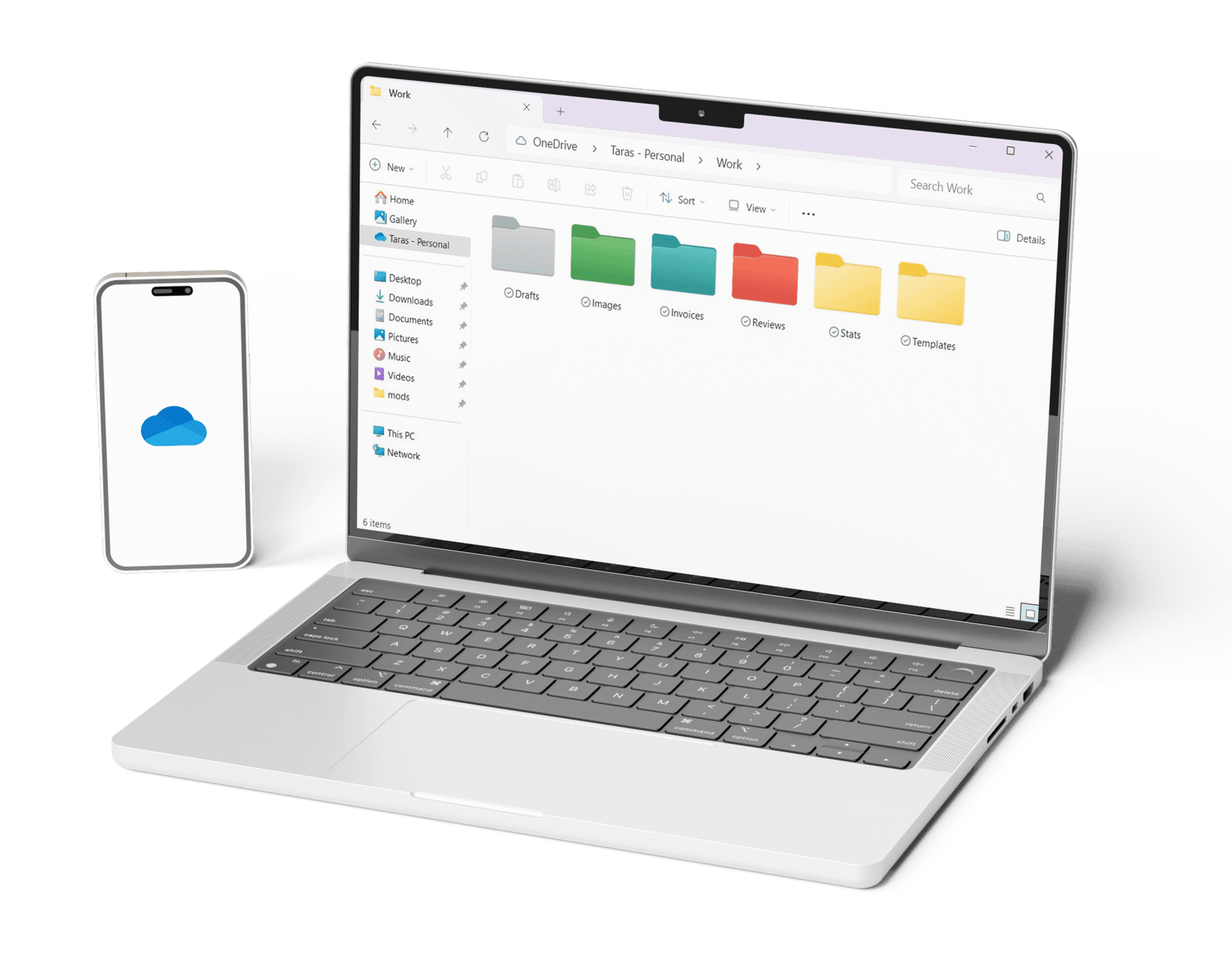
The biggest mistake is storing files in five places at once. Some invoices sit in email, some contracts live on a USB stick, and the rest float around a personal cloud account. Before you organise anything, choose one primary home for business files. For most small businesses this is a business cloud account such as Google Drive, Microsoft OneDrive or Dropbox, because files stay synced, shared and recoverable. The key word is one. Everything new goes there from today onward.
Cloud, local or both
Cloud storage suits teams that work from different places and anyone who wants automatic version history. A local drive suits businesses with huge design files or strict client confidentiality rules. Many owners use both: the cloud as the working home and an external drive as a second backup. Either way, write the decision down so future you, or a new hire, does not start a rival system by accident.
Step 1: Map where your files live right now
You cannot fix what you cannot see. Spend an hour listing every place business files currently hide: email inboxes, phones, USB sticks, old laptops, paper folders, accounting apps, and the desktops of anyone who works with you. Do not move anything yet. Just make the list and note which locations hold the most important records, such as tax documents and signed contracts. This map becomes your migration checklist later, and it stops old files from being forgotten on a dusty hard drive.
Step 2: Build a simple folder structure that lasts
Resist the urge to create forty folders on day one. A system with a few broad folders and clear names beats a clever one nobody can remember. Start with five to eight top level folders that match how your business actually runs. Here is a template that suits most small service businesses and freelancers:
- 01 Clients: one subfolder per client, with the same folders inside for contracts, invoices and correspondence
- 02 Finance: bank statements, tax returns, payroll, and a Receipts folder for every purchase
- 03 Suppliers: quotes, contracts and invoices from people you buy from
- 04 Marketing: website files, logos, social media assets and campaign plans
- 05 People: contracts, ID checks and training records for staff
- 06 Legal and Insurance: policies, licences, leases and compliance documents
- 07 Projects: active work, with one folder per project
- 08 Archive: finished years and closed projects, moved here once a year
The numbered prefixes keep folders in a sensible order instead of alphabetical chaos. Inside each client or project folder, use the same subfolder pattern every time. Consistency matters more than cleverness, because you want to guess where a file is without thinking.
Your Finance folder deserves special care. Scanned receipts and bank statements filed by tax year make tax time dramatically calmer, and our guide to keeping business receipts for tax explains exactly what HMRC wants to see. If you are self employed, pairing this folder with a solid routine for tracking business expenses as a freelancer keeps your books accurate all year. And inside your Clients folders, keep every invoice you send in one place, because it makes chasing unpaid invoices far less painful when a payment runs late.
Step 3: Create one file naming rule and use it everywhere
Folders organise the shelves, but file names are the labels. A good naming rule answers three questions at a glance: what is this, when is it from, and who is it for. Pick a format and write it on a single page everyone can see. A reliable formula looks like this: date first, then client or project, then document type, then version. For example, a file might be called 2026 10 04 Acme Ltd Invoice 0147. Putting the date first means files sort themselves in chronological order automatically.
A few extra rules make the convention stick. Always use the same date format, preferably year month day, so sorting never breaks. Avoid vague names like final, final2 or new version, and use version numbers instead. Skip special characters that cause trouble across different systems, and keep names short enough to read in a file browser. It feels fussy for the first week, then it becomes automatic, and finding any file takes seconds.
Step 4: Separate active work from records and archives
Not every file deserves equal attention. Active work is what you touch weekly. Records are documents you must keep but rarely open, such as tax returns and signed contracts. Archives are finished years and closed projects. Move records and archives out of your daily view once a year, ideally just after the tax year ends. Your working folders stay lean, searches stay fast, and old material remains findable when you need it.
How long to keep business records in the UK
Retention rules decide when you may delete. In the UK, HMRC generally requires business records to be kept for six years from the end of the accounting period, and VAT records follow similar rules. Employment records such as payroll and pension details often need three to six years depending on the document. GDPR adds the opposite pressure: do not keep personal data longer than necessary. The practical answer is a simple retention schedule, one table listing each document type and how long you keep it, reviewed once a year. When a file passes its date, delete it securely rather than letting it linger.
Step 5: Control who can see and change what
Shared folders need ground rules. Give each person access only to what their role requires: your bookkeeper needs Finance, not your People files. Use view only access wherever editing is not needed, because accidental deletions are one of the most common ways files go missing. Turn on version history in your cloud storage so any change can be undone, and protect sensitive folders, such as People and Legal, with the strictest sharing settings. If someone leaves the business, remove their access on their last day, not a month later.

Step 6: Back up everything without thinking about it
A filing system without backups is a disaster waiting for a spilled coffee. Follow the simple principle of three copies: your working files, plus a backup on a different type of storage, plus one copy stored somewhere else entirely, such as a second cloud service or an external drive kept away from the office. Cloud storage already keeps version history, which protects against accidental edits, but it does not protect you if your account itself is compromised, so a separate backup still matters. Automate the whole thing. Manual backups fail because busy people forget them. Test your backups once or twice a year by restoring a single file, because a backup you have never tested is only a hope.
Step 7: Scan the paper pile and keep it digital from now on
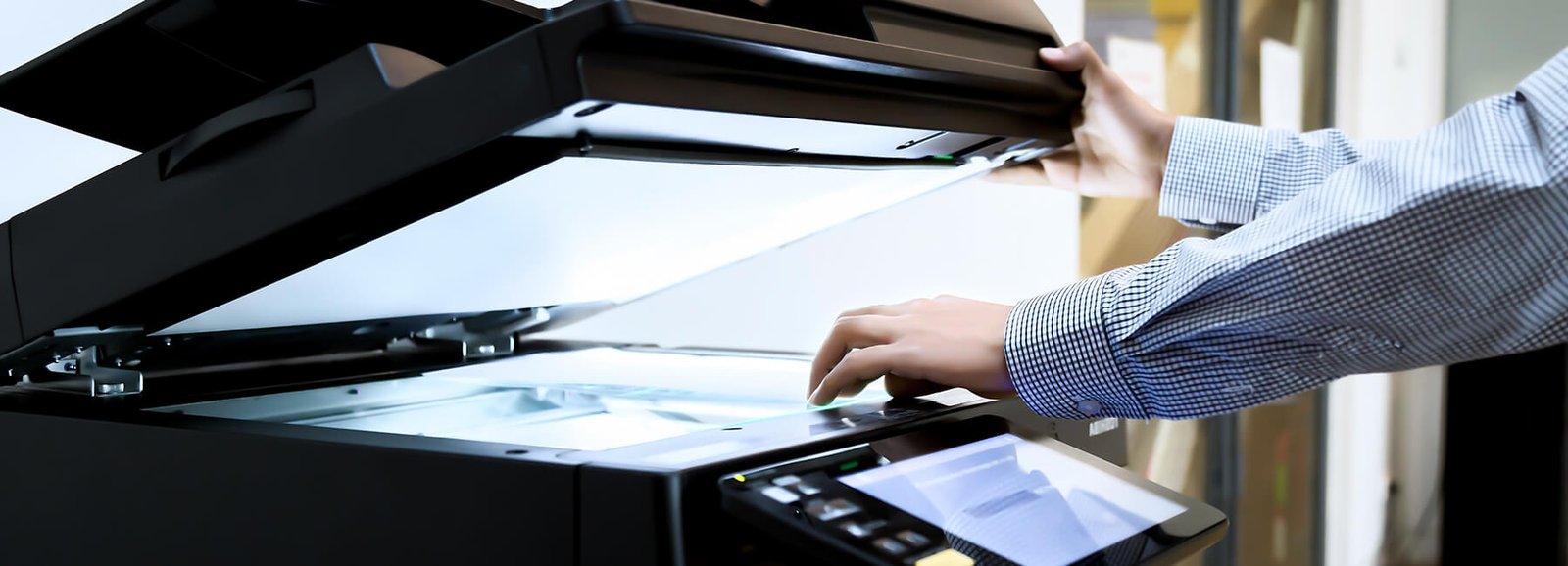
Paper is where filing systems go to die. Deal with the backlog in one focused push: sort paper into keep, scan and shred piles, scan the keep pile with a phone app or desktop scanner, file the scans using your new naming rule, then shred what you no longer need in original form. Check HMRC guidance before shredding tax related originals, since most records are fine as scans while a small number are safer kept on paper.
Then stop new paper at the door. Ask suppliers for emailed invoices, photograph receipts with your phone the moment you receive them, and sign documents electronically where the law allows. A small desktop scanner or even a good scanning app removes the last excuses.
Mistakes that quietly break filing systems
Most systems fail for the same handful of reasons, and all of them are avoidable. Creating too many folders is the classic one: if you need a search function to find a folder, you have too many. Letting two systems run side by side is another: the moment files live in both email and the cloud, nobody trusts either. Skipping the naming rule for quick saves guarantees a folder full of mystery files within months. Granting everyone full access to everything invites accidental deletions and data leaks. And the biggest mistake of all is treating the system as a one time project. A filing system is like a garden: a little regular attention keeps it thriving, and neglect turns it into a jungle.
A simple weekly routine to keep the system tidy
Maintenance is the unglamorous part that makes everything else work. Block out thirty minutes each week, Friday afternoon works well for many owners, and run through a short routine. File anything sitting in your downloads folder or email inbox. Rename any files that broke the naming convention. Move finished work from active folders into the archive structure. Check that your backups ran successfully. Delete or archive anything past its retention date. Thirty minutes a week prevents the slow drift back into chaos, and it is far cheaper than the weekend rescue mission you would otherwise face once a year.
Your next steps
Learning how to create a digital filing system for small business owners is a skill that pays you back every single week. Choose one home for your files, build a small set of folders that match your business, agree a single naming rule, separate active work from archives, lock down permissions, automate backups, and keep new paper out. Do the setup once, maintain it weekly, and you will never again lose an afternoon hunting for a contract or panic at tax time. Start today with the folder template above, and future you will be grateful.
Frequently asked questions
How long does it take to create a digital filing system for small business use?
Most owners can set up the core structure in a weekend. Mapping your current files takes an hour or two, building the folders and the naming rule takes another hour, and migrating the important files takes the rest of the time. Scanning a large paper backlog is the slow part, so tackle it in batches rather than waiting for a free month that never comes.
What is the best cloud storage for a small business filing system?
There is no single winner, but Google Drive, Microsoft OneDrive and Dropbox all work well. Choose the one that integrates with the tools you already use: if your business runs on Gmail, Drive is the natural fit, while Microsoft 365 users will find OneDrive smoother. What matters far more than the brand is using one account consistently and turning on two factor authentication.
Should I keep paper copies of important business documents?
For most day to day paperwork, a clear scan is enough, and HMRC accepts digital records for tax purposes in most cases. Keep originals of a small number of items such as property deeds, signed loan agreements and anything a solicitor tells you to retain. Store those originals in one safe place and note their location in your digital system so you never hunt for them.
How do I organise files if I work with a team?
Agree the folder structure and naming rule together before anyone files a single document, and write both on one shared page. Give people access only to the folders their role needs, use view only permissions where possible, and appoint one person to run the weekly tidy routine. Teams fail at filing when everyone invents a private system, so consistency is a shared responsibility.
What should I do with old files I am not sure I need?
Do not delete what you cannot replace. Move uncertain files into a quarantine folder inside your archive, dated with the year, and review it during your annual retention check. If a full year passes without anyone opening a file, and no law requires you to keep it, delete it securely. When in doubt about tax or legal documents, keep them and check the retention rules first.