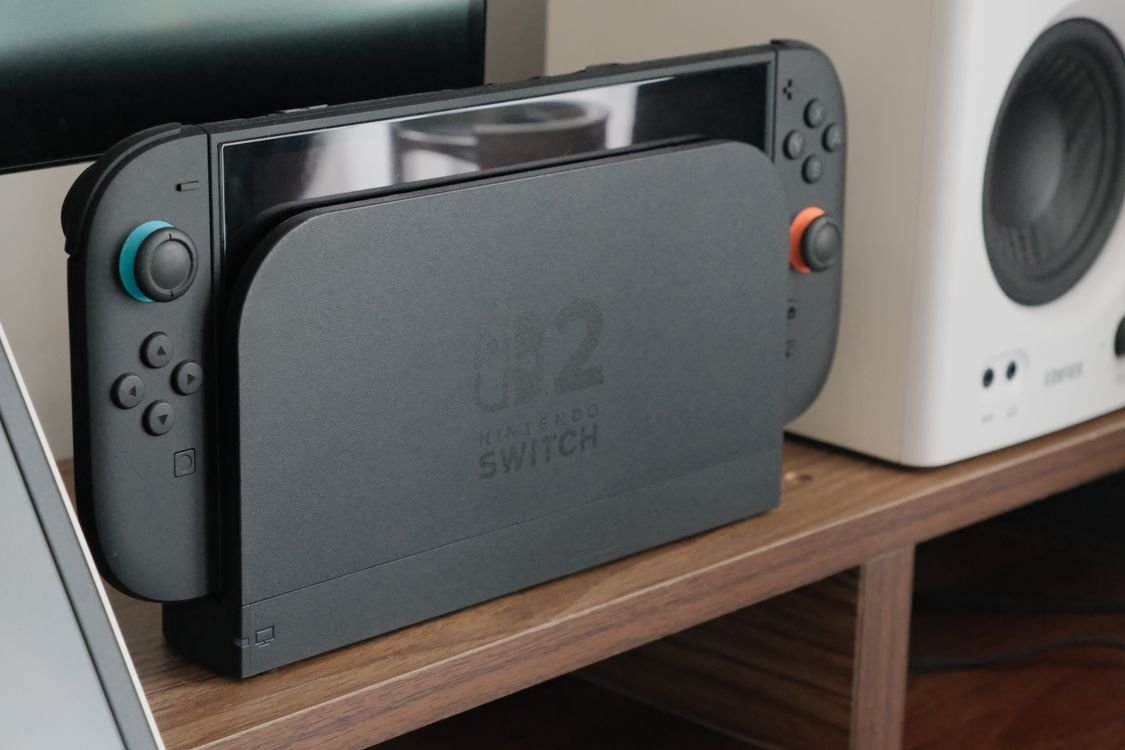
You settle in for a long evening of gaming, slide your Switch into the dock, and half an hour later the back of the console is hot enough to make you nervous. Maybe the fan is screaming. Maybe the system flashed a temperature warning and shut itself down mid game. If you are learning how to stop Nintendo Switch from overheating in dock, the good news is that most cases come down to airflow, dust, or habits you can fix today without spending a dollar.
This guide walks you through the fixes in the order that matters, from free placement tweaks to the point where you should stop and get the console serviced. It covers the original Switch, the OLED model, and the Switch 2, since the dock behaves a little differently on each one.
First, Understand What Normal Heat Looks Like
A warm Switch is not a broken Switch. The console runs a real processor and graphics chip, and when it outputs to a TV in docked mode it works harder than in handheld mode, because it is pushing a higher resolution. Nintendo says the console is designed to operate between 41 and 95 degrees Fahrenheit. Feeling warmth through the dock vents after an hour of play is normal.
What is not normal: the console shutting itself down, a temperature warning on screen, the dock becoming uncomfortable to touch, or heat that keeps rising while the system is just sitting idle. Those are signs that cooling is not working properly, and the fixes below address exactly that.
Why Your Switch Overheats in the Dock
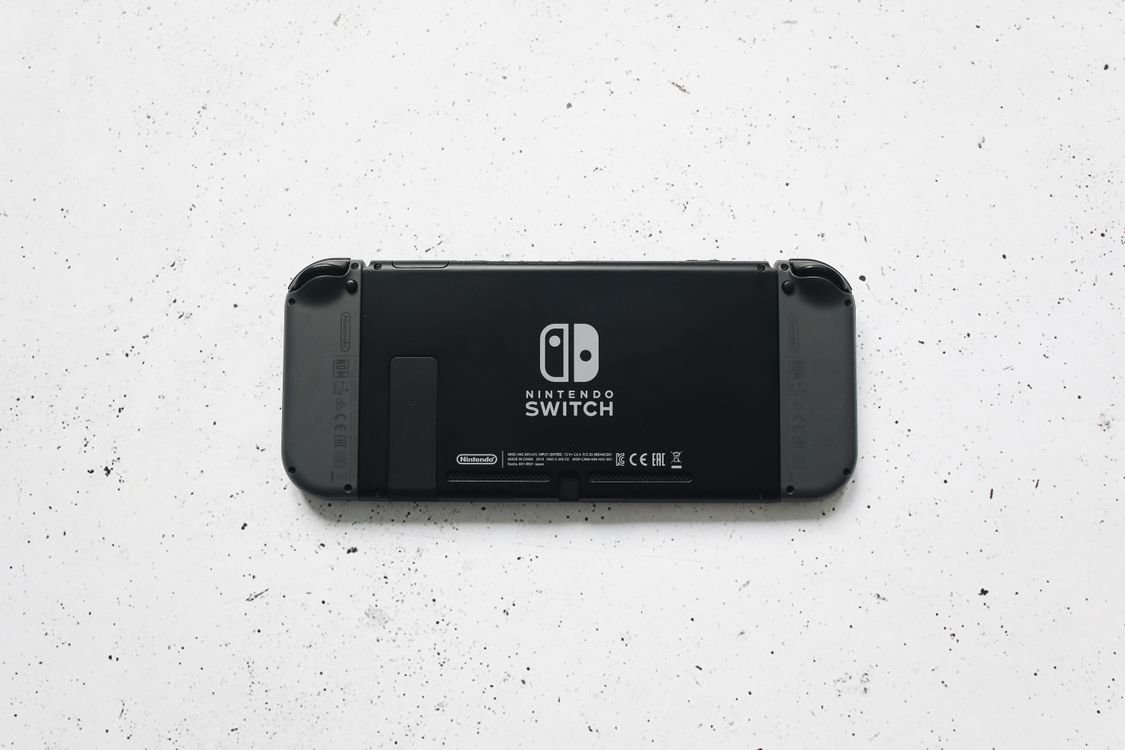
Heat leaves the console through a single narrow vent along the top edge. When the Switch is docked, that vent sits right against the back of the dock. The dock itself also generates heat, especially when it is converting power and video output at the same time. So the system is fighting on two fronts: its own heat plus the warm air trapped around the dock.
The most common causes, in rough order of frequency, are a dock sitting inside a closed TV cabinet, dust clogging the vent, a hot room, marathon play sessions with demanding games, and occasionally a fan that has stopped spinning. Work through the fixes in this order and most overheating stops at step two or three.
Fix 1: Give the Dock Room to Breathe
This single change fixes more overheating than anything else. Pull the dock out of the TV cabinet and put it on an open shelf with at least two to three inches of clear space above it and a few inches behind it. The vent on top of the dock needs open air. If the back of the dock is pressed flat against a wall, hot air has nowhere to go and just cycles back into the console.
Also move the dock away from heat sources. A dock sitting on top of a cable box, an AV receiver, or a game console is soaking up their waste heat all day. A dock near a sunny window or above a heating vent in winter faces the same problem. Give the dock its own spot with open air on every side and you will often feel the difference within one session.
Fix 2: Clean the Vents With Compressed Air
Dust is the silent enemy of small electronics. Over months of sitting on a shelf, the Switch vent and the dock vents collect a layer of dust that chokes airflow. Buy a can of compressed air, which costs a few dollars at any office supply or electronics store, and give the top vent of the console a few short blasts. Do the same for the dock vents and the USB ports on the back of the dock.
Keep the can upright and use short bursts from a few inches away. What not to do matters here: never use water or wet wipes inside the vents, never blow with your mouth because moisture gets inside, and never poke anything into the vent slots. You are also better off not using a vacuum cleaner on the vents, since the static from the nozzle can be a risk near electronics.
Fix 3: Cool the Room, Not Just the Console
Electronics can only shed heat into air that is cooler than they are. Nintendo recommends using the Switch in rooms between 41 and 95 degrees Fahrenheit, but realistically anything above about 77 degrees makes the fan work much harder. If you game in a warm upstairs bedroom in summer or near a radiator in winter, the room is a big part of the problem.
You do not need to air condition the whole house. A small desk fan pointed past the TV stand moves the hot air pocket away from the dock. Gaming earlier in the day when the room is cooler also helps. If the room feels stuffy to you, it feels stuffy to the Switch too.
Fix 4: Take Breaks During Long Sessions
Heat builds up over time. A two hour session of a demanding open world game pushes far more heat than four thirty minute sessions with breaks between them. When the console is working hard for hours without rest, the internal parts never get a chance to cool back down.
Try a simple rhythm: pause every hour, take the console out of the dock for five minutes, and let the fan do its job with full airflow. It also helps to save and close the game fully during a break instead of leaving it suspended, because a suspended game still holds system resources. Honestly, long unbroken sessions wear you out too, so if gaming is starting to swallow whole weekends, our guide on how to do a digital detox weekend has practical ideas for resetting your play habits without quitting games you love.

Fix 5: Update the System Software
Nintendo keeps refining how the console manages heat. Firmware updates often include tweaks to fan speed curves and power management, which directly affect temperature. It is one of those fixes that takes two minutes and costs nothing.
Go to System Settings, then System, then System Update. Run the update even if you think you are current, because automatic updates sometimes stall. While you are there, update the games too. Developers patch performance problems over time, and a poorly optimized launch version of a game can run much hotter than its patched version.
Fix 6: Ease Off the Most Demanding Games When It Is Hot
Not all games stress the console equally. A big open world adventure with detailed graphics makes the processor work far harder than a simple puzzle game or a side scrolling platformer. If the Switch only overheats with certain titles, the game intensity is your answer, and that is useful information.
Try this test: play a demanding game for thirty minutes and note how hot the dock area feels, then play a lighter game for the same time. If the problem only appears with heavy games, you have confirmed it is a cooling capacity issue rather than a broken fan. On hot days, save the demanding titles for cooler hours and play lighter games in the afternoon.
Fix 7: Check That the Fan Is Actually Spinning
A dead or clogged fan turns every other fix into a bandage. In a quiet room, dock the Switch and start a game, then listen near the top vent of the console. You should hear a steady, smooth hum that rises as the game gets demanding. On the Switch 2, the dock itself also has a fan, so listen near the back of the dock too.
If you hear nothing at all while the console is clearly hot, the fan may have failed or be jammed with dust. If you hear grinding, rattling, or a fan that surges wildly up and down, the bearing may be worn. Both cases point toward a repair rather than a cleaning, which brings us to the last sections of this guide.
Fix 8: Consider a Cooler Dock or a USB Fan
If placement and cleaning are not enough, accessories can help. Some third party docks use a more open design with better airflow than the official dock, and they are inexpensive. Look for one with good reviews from real owners rather than the cheapest listing. Stick with docks that carry Nintendo certification or at least come from an established accessory maker, because badly made docks have caused their own problems.
A simpler option is a small USB powered fan pointed at the dock area during play. It does not need to be fancy. Even gentle airflow across the dock and console vents moves the hot pocket of air away and lets the internal fan work less hard. It is also worth remembering that Bluetooth audio works on the Switch since a past firmware update, so if you game with earbuds, check our tips for making AirPods louder on Android for the same kind of audio setting tricks that carry over to any device you pair.
Fix 9: Stop Doing These Things
A quick list of habits that make overheating worse, so you can check yourself against them. Do not charge the console and play a demanding game in a hot room at the same time when you can avoid it, since charging adds heat on top of gameplay heat. Do not wrap the dock or console in anything while it is running, including decorative sleeves or stickers over the vents. Do not put the Switch in the fridge or freezer to cool it down fast, because the sudden temperature change can cause moisture to condense inside the electronics, which is far worse than heat.
And do not ignore the warning signs. If the console shuts itself down from heat, let it cool completely before turning it back on. Restarting a hot console and jumping straight back into the same game just repeats the cycle.
A Note on the Switch 2 Dock
The Switch 2 pushes higher resolutions and frame rates than the original, so it generates more heat, and Nintendo gave its dock an active cooling fan to compensate. That means two things for Switch 2 owners. First, the dock fan should be audible during heavy play, and silence from the dock fan while the dock gets very hot is a specific sign of trouble. Second, the Switch 2 dock can feel warm in sleep mode if a LAN cable is connected, because the console keeps using some power. Nintendo says a slightly higher temperature in that situation is within normal limits.
When to Stop and Get a Repair
Most overheating is fixable at home, but some cases are not. Send the console in for service, or to a reputable repair shop, if the fan never spins even when the console is hot, if the system shuts down during light games after you have done all the steps above, if you hear grinding from the fan, or if the battery looks swollen and is pushing the case apart. A swollen battery is a safety issue: stop using the console, do not puncture or press on it, and get it serviced.
Conclusion: How to Stop Nintendo Switch From Overheating in Dock
Learning how to stop Nintendo Switch from overheating in dock mostly comes down to three habits. Give the dock open air with real clearance on every side, keep the vents free of dust with a can of compressed air every few months, and take short breaks during long sessions of demanding games. Update your firmware, cool the room when you can, and listen for the fan so you catch a real failure early. The key takeaways are simple: placement first, cleaning second, accessories last, and never ignore a temperature shutdown. Do those, and your Switch will stay cool through even the longest gaming weekends.
Frequently Asked Questions
Is it normal for the Nintendo Switch to get hot in the dock?
Some warmth is normal because docked mode pushes a higher resolution to the TV. Feeling warm air from the vents after an hour of play is expected. It is not normal for the dock to be uncomfortable to touch, for the fan to scream constantly, or for the system to shut down from heat.
How do I stop my Nintendo Switch from overheating in the dock?
Move the dock to an open shelf with two to three inches of clearance, clean the console and dock vents with compressed air, keep the room below about 77 degrees Fahrenheit, take short breaks during long sessions, and update the system software. These five steps solve most cases.
How hot can a Nintendo Switch get before damage?
Nintendo rates the console for use between 41 and 95 degrees Fahrenheit. The system protects itself by shutting down before serious damage happens, which is why you should never force a restart while it is still hot.
Can I leave my Nintendo Switch in the dock all the time?
Yes. The Switch has overcharge protection and stops charging once the battery is full, running directly off the adapter instead. Leaving it docked does not damage the battery. The heat question is separate and comes down to airflow around the dock.
Why does my Switch 2 dock fan not spin?
The dock fan only starts when the dock gets warm enough to need it, typically during demanding games in TV mode. If the dock gets very hot while the fan stays silent, the fan may have failed and the dock likely needs service.