You open YouTube to watch one short video. Maybe it is a recipe, a repair tip, or a song you like. The video ends, and before you have time to put the phone down, another one starts. Then another. Forty minutes later you are watching a video about a topic you never searched for, your battery is lower, and your mobile data has taken a hit. If that sounds familiar, you are not alone. Learning how to stop YouTube from autoplaying videos on Android phone takes only a few minutes, and it changes the way the app feels to use.
The trick is that YouTube has more than one autoplay switch. Most people turn off only the first one they find, then wonder why videos keep playing. There is a switch in the video player, another one in Settings, a separate control for videos that play while you scroll the home feed, and a different set of rules for Shorts. This guide walks through all of them in order, so you can shut the whole chain down in one sitting.
Here are the three main points to remember. First, the player toggle and the Settings toggle control the same feature from two places, so set both. Second, feed previews are a separate setting, and they keep playing silently even when autoplay is off. Third, Shorts behave differently from regular videos, so they need their own fix. Work through the sections below and your phone will stop deciding what you watch next.
How to Stop YouTube From Autoplaying Videos on Android Phone
Start with the main switch. It stops the next video from starting automatically when the one you are watching ends. There are two ways to reach it, and they do the same job, so use whichever you find first.
Method 1: Use the toggle in the video player
Open the YouTube app and play any regular video. Look at the top of the player while the video is playing. You will see a small toggle with a play icon and the word Autoplay next to it. Tap it until it shows as off. The change takes effect right away. When the video ends, YouTube will stop and wait for you to choose what happens next.
This is the fastest method, and it is the one to use when a video is about to end and you only want to stop the next one. If you want to skip just one upcoming video without changing your setting, tap Cancel on the countdown that appears near the end of a video. That stops the next video once and leaves your setting alone.
Method 2: Turn it off in Settings
For a lasting fix, change the setting itself. Tap your profile picture in the top right corner of the YouTube app, then tap the gear icon to open Settings. Tap Autoplay and switch it off. From now on, videos will not chain together on that device.
One detail catches many people out. YouTube saves this preference separately on each device. Turning autoplay off on your phone does not turn it off on your tablet, your laptop, or your TV. If you watch on more than one screen, repeat the same change everywhere you use the app. It takes less than a minute per device, and it is the only way to make the change stick across your whole routine.
While you are in Settings, take a quick look at the rest of the Autoplay screen. Some versions of the app show extra options here, such as autoplay on the home page. Turn off anything that lets videos start without your say so. The goal is simple. Nothing on YouTube should play until you tap it.
Stop Videos From Playing While You Scroll the Home Feed
Here is the setting most guides miss. Even with autoplay off, videos on the YouTube home feed can start playing silently as you scroll past them. YouTube calls this Playback in feeds. The video plays muted with captions, and it keeps going while you browse. It eats data, it drains battery, and it pulls your attention toward clips you never chose.
To turn it off, tap your profile picture, then the gear icon for Settings. Tap General, then tap Playback in feeds. Choose Off. If you like seeing previews at home but want to protect your mobile data, choose WiFi only instead. That way previews play when you are on your home network and stay silent when you are out.
On some phones the option sits under Playback instead of General, so check both places if you cannot find it at first. The exact menu names shift slightly between app versions, but the path is always the same idea. Profile picture, Settings, then the playback section.
This one change makes the home feed feel calmer at once. The page stops moving on its own. You can read titles, look at thumbnails, and pick a video because you want it, not because it started playing in your face. If you are trying to cut down screen time, this is the single most useful switch after the main autoplay toggle.
Tame Shorts So They Stop Chaining Together
Shorts are the hardest part of YouTube to control, because they are built to keep you swiping. When you open a Short, the next one loads as soon as you swipe up, and there is no autoplay toggle that stops that chain. The fix is not a single switch. It is a set of limits that make the chain stop mattering.
Start with the daily limit. Open the YouTube app, tap your profile picture, go to Settings, and look for the Shorts controls. You can set a daily limit for Shorts, and for many users that limit can now go down to zero minutes. Set the limit low, even if it is only fifteen minutes a day. When the time runs out, YouTube shows a reminder instead of the next clip, and that pause is often enough to break the habit.
Next, turn on the break reminder. In Settings, look for the option called Remind me to take a break. Set it to the shortest interval the app offers. The reminder appears over the video and asks if you want to keep watching. It is a small interruption, but it puts the choice back in your hands at the exact moment the app would rather you kept scrolling.
Finally, change how you open Shorts in the first place. If a Short appears in your home feed, long press it and choose Not interested. Do this a few times and YouTube shows you fewer of them. You can also watch regular videos from search results or your subscriptions instead of opening the Shorts shelf. Shorts are designed to be endless. The best way to beat them is to spend less time on the shelf where they live.
If late night scrolling is your main problem, pair these limits with a bedtime routine for your phone. Put the phone on charge across the room, or switch on your phone night mode so the screen dims and notifications quiet down. A phone that keeps buzzing can pull you back just as easily as a video that keeps playing, so it helps to calm both at once. Our guide on how to stop smartwatch buzzing at night while sleeping covers the same idea for the device on your wrist.

Save Mobile Data and Battery While You Watch
Autoplay is not only annoying. It costs real money and real battery life. A video that plays on its own uses the same data as a video you chose. On a limited mobile plan, a few forgotten autoplay sessions can eat through your allowance before the month is half over. YouTube itself stops autoplay after 30 minutes of no interaction on mobile data, and after 4 hours on WiFi, but that is far too late to save your data.
The WiFi only choice for feed previews, covered above, is the biggest data saver in this guide. Add two more habits and the savings grow. First, set video quality to a lower level when you are on mobile data. In the YouTube app, go to Settings, then Video quality preferences, and choose Data saver for mobile networks. Videos will still look fine on a phone screen, and each one will use far less data.
Second, download videos on WiFi when you know you will watch them later. Tap the download button under a video while you are at home, and watch it from your library when you are out. The video plays from your phone storage, so it uses no mobile data at all. This works well for commutes, flights, and any place where the signal is weak.
Battery follows the same logic. A screen that plays video without stopping keeps the processor and the display working at full power. Stopping autoplay means the screen can rest between videos. If your phone still runs low by the evening, check which apps use the most power in your Android battery settings. You may find that YouTube sits near the top, and that is another reason to keep it on a short leash.
Stop Autoplay on a Child Phone or Shared Tablet
Children need stronger limits than adults, because the app is designed to hold attention, and a young child will not stop on their own. If your child uses your phone or has a phone of their own, start with the account. YouTube turns autoplay off by default for users ages 13 to 17, but teens can turn it back on themselves, so check the setting on their device rather than assuming it is still off.
For younger children, use the YouTube Kids app instead of the main YouTube app. It has its own controls, and parents can approve channels and set time limits. For a shared family tablet, set up a supervised account through Google Family Link. With a supervised account, you can hide the autoplay controls so a child cannot switch them back on. That matters, because a child who finds the toggle will flip it the first time a video stops.
Talk about the change as well as making it. Tell your child that videos will now stop at the end instead of starting a new one, and that they can always ask for another video. The goal is not to ban videos. It is to make watching a choice instead of a chain. When a video ends and the screen goes quiet, a child has a moment to decide whether to keep watching, play with something else, or go outside.
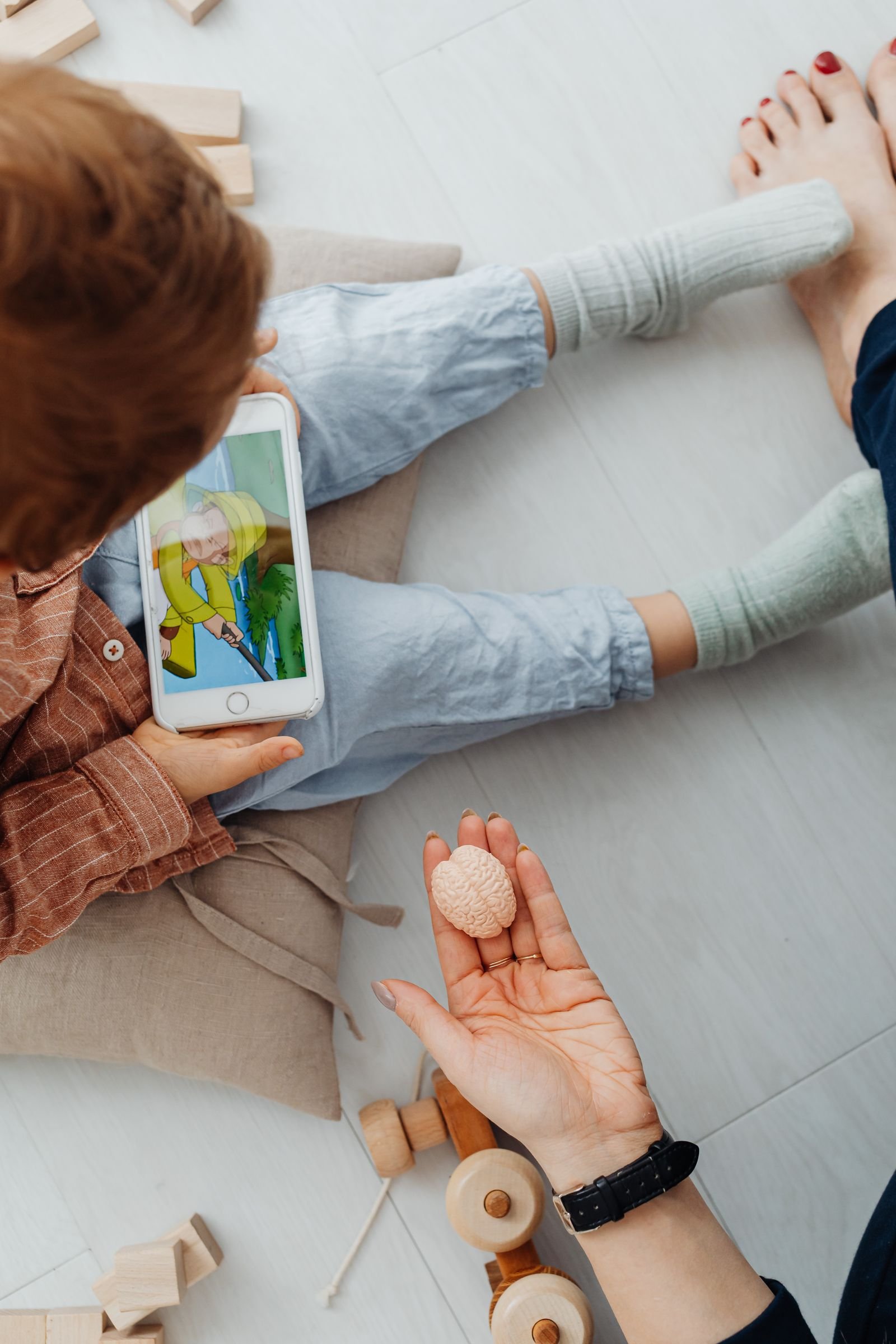
Parents often hand a phone to a child in the car or at a restaurant. Before you hand it over, open the video yourself, turn autoplay off in the player, and set a Shorts limit if the child might wander into the Shorts shelf. Two minutes of setup saves you from a car ride full of videos you never approved.
When Autoplay Keeps Turning Itself Back On
Sometimes you turn autoplay off and it comes back. That is frustrating, but it usually has a simple cause. Work through these checks in order.
First, check that you changed the setting on the right account. If you use more than one Google account on your phone, YouTube saves autoplay separately for each one. Switch to the account you actually watch with, then check the setting again. This is the most common cause of the problem.
Second, update the YouTube app. Old versions of the app can lose settings after an update, or show a toggle that does not match the real setting. Open the Play Store, search for YouTube, and tap Update if the button is there. Then open the app, go to Settings, and confirm autoplay is still off.
Third, clear the app cache. A stale cache can freeze the app in an old state. Go to Android Settings, then Apps, then YouTube, then Storage and cache, and tap Clear cache. Do not tap Clear storage unless you are ready to sign in again, because that resets the app completely. Clearing the cache alone is safe and it fixes many stubborn settings.
Fourth, check playlists. Autoplay settings do not always apply inside a playlist. If you start a playlist, YouTube will keep playing through the list even with autoplay off. That is by design. If a playlist keeps you watching, pause it yourself or close the app when you have seen enough.
Finally, restart your phone. It sounds too simple to work, but a restart clears temporary glitches that can stop a setting from saving. If the setting still flips back after all of this, remove the YouTube app updates from the Play Store and reinstall the app. That gives you a clean copy with no leftover settings to fight.
Android settings have a habit of hiding useful switches in odd places. The same is true in other apps on your phone. Our guide on how to schedule a WhatsApp message on Android shows another handy Android feature that sits in a menu most people never open. And if sound is part of the problem, for example when videos blast at full volume late at night, see how to make AirPods louder on Android for the audio controls that actually matter.
A Calmer Phone in Five Minutes
YouTube autoplay feels like a small annoyance until you add up what it costs. It costs attention, because it decides what you watch next. It costs data, because it plays videos you never asked for. It costs sleep, because one more video is always waiting. The fix is not complicated, but it does need all three switches, not just one.
Here is the short version to take away. Turn off autoplay in the video player and in Settings, on every device you use. Turn off Playback in feeds, or set it to WiFi only. Set a Shorts daily limit and a break reminder. Use Data saver quality on mobile networks, and download videos on WiFi when you can. For children, use a supervised account or the YouTube Kids app so the setting stays off.
Do those five things and your phone changes character. Videos stop when they end. The home feed stops moving on its own. Shorts stop chaining into an hour of swiping. You watch what you choose, when you choose it, and you put the phone down when you are done. That is how to stop YouTube from autoplaying videos on Android phone, and it takes about five minutes from start to finish.
Frequently Asked Questions
Does turning off autoplay stop Shorts from playing?
No. Shorts use a separate system, and swiping up always loads the next Short. Use the Shorts daily limit and the break reminder in Settings to control them, and mark Shorts as Not interested in your feed to see fewer of them.
Why does autoplay keep turning back on by itself?
The usual cause is a second Google account with autoplay still on, or an old version of the app that lost the setting. Check the setting on the account you watch with, update the app from the Play Store, and clear the app cache if the problem continues.
Does autoplay use mobile data?
Yes. Every video that plays on its own uses the same data as a video you chose. Set Playback in feeds to WiFi only, choose Data saver quality on mobile networks, and download videos on WiFi to watch later without using data.
Can I stop autoplay only on mobile data and keep it on WiFi?
There is no single switch for that. The closest option is to set Playback in feeds to WiFi only, which stops silent previews on mobile data, and to use Data saver quality when you are out. Turn the main autoplay switch off as well if you want full control.
How do I stop autoplay on my child phone?
Use the YouTube Kids app for younger children, or set up a supervised account through Google Family Link so the autoplay controls stay hidden. YouTube turns autoplay off by default for users ages 13 to 17, but teens can switch it back on, so check the setting on their device.