
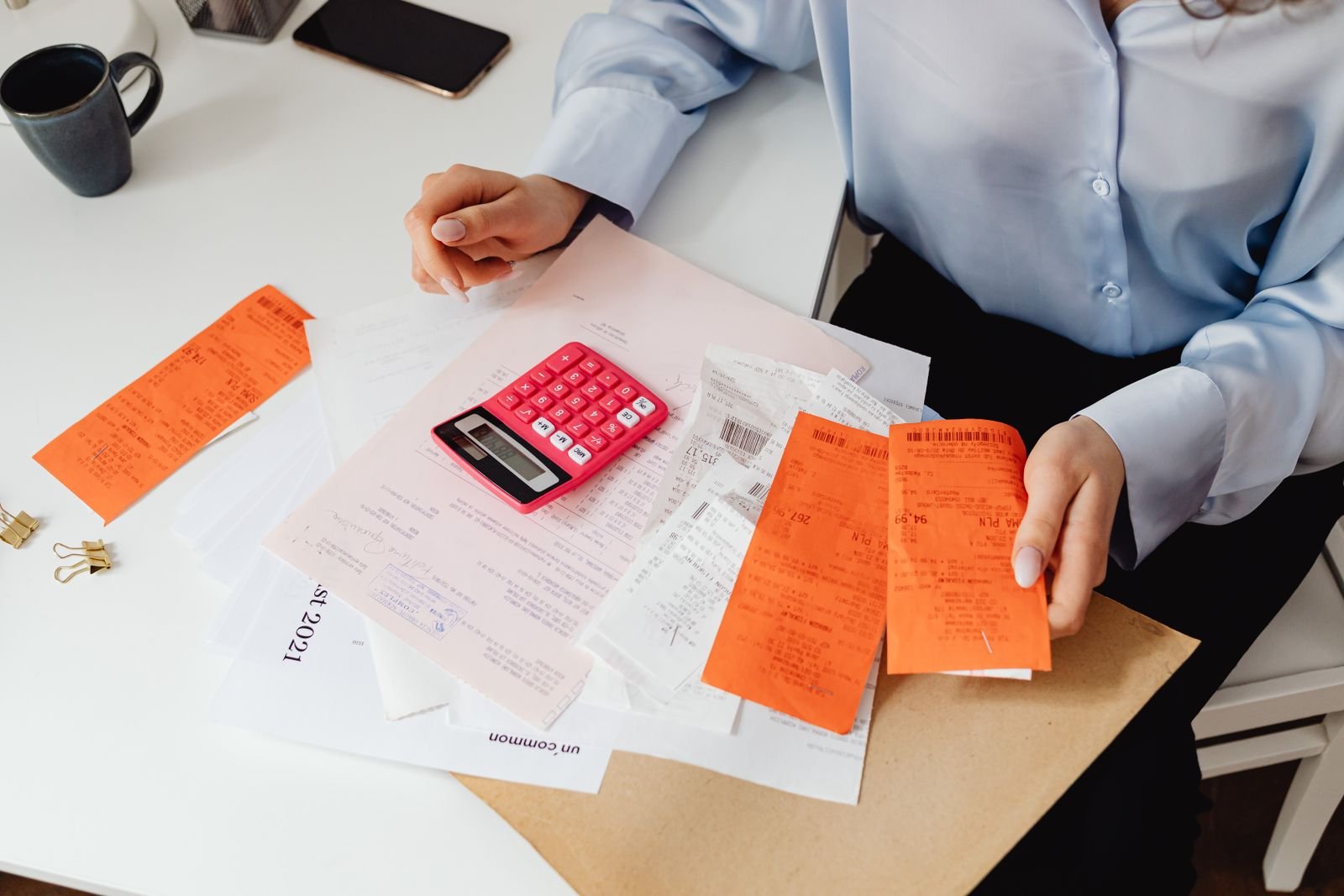
Dana runs a mobile pet grooming business in Austin, Texas. Her van, her clippers, her shampoo stock, and a steady stream of gas station stops keep her busy six days a week. For years she tossed every paper receipt into a shoebox on her kitchen counter and promised herself she would sort it out later. Later arrived every April, and every April it hurt.
Last spring her accountant asked for proof of $1,200 in supply purchases. Dana opened the shoebox and found faded slips, blank thermal paper, and three receipts she could not read at all. The purchases were real. The proof was gone. She paid tax on money she had already spent, and she decided that April would be the last time a shoebox cost her money.
The fix took less than an hour to set up and about 30 seconds per receipt after that. This guide shows how to organize digital receipts for a small business with your phone, using free tools you already own, a naming habit that makes every file findable, and folders your accountant will actually enjoy opening. No scanner, no paid app, and no Sunday afternoon lost to paperwork.
Why paper receipts fail a small business
Most receipts print on thermal paper, and thermal paper is a poor record keeper. Heat fades it. Sunlight fades it. A summer afternoon in a glove box can turn a crisp receipt into a blank slip. By the time tax season arrives, the proof of a purchase made in March may already be unreadable.
The cost is not only the faded ink. A shoebox is not a system. When a receipt has no home, you cannot find it, and a receipt you cannot find is the same as a receipt you never kept. A $40 supply run, a $65 tank of gas, and a $28 client lunch look small on their own. Across a year they add up to real money, and every dollar without proof is a dollar you cannot deduct.
Your phone fixes this because it is always with you. The moment a purchase happens, the phone is in your pocket, the receipt is in your hand, and the whole job takes less time than putting the change back in your wallet. The rest of this guide turns that moment into a system.
How to organize digital receipts for a small business with your phone
The system has three parts: capture, name, and file. Capture turns the paper into a clean digital copy. Naming makes every file searchable by date, vendor, and amount. Filing puts each copy where you can find it in seconds. Do all three and any receipt is findable before your coffee gets cold. Skip one and the system slowly slides back toward the shoebox.
Step 1 Capture every receipt in 30 seconds
Start with the scanner hiding in your phone already. On an iPhone, open the Notes app, tap the camera icon, and choose Scan Documents. The Files app offers the same tool under its menu. On Android, open Google Drive, tap the plus button, and choose Scan. Both options are free, and both save a clean PDF instead of a plain photo.
A scan beats a photo because the app finds the edges, straightens the page, and boosts the contrast so the text stays sharp. A plain camera photo often comes out tilted, shadowed, or cropped, and that is exactly the kind of copy an accountant cannot use. Take ten extra seconds to get the scan right and you will never have to do it twice.
Good scanning technique is simple. Lay the receipt flat on a dark surface so the edges stand out. Work in bright, even light near a window and keep the flash off, because flash leaves a bright spot in the middle of glossy paper. Hold the phone straight above the receipt, fill the frame without cutting off a corner, and tap the screen to lock the focus. Check the result before you walk away. If the text looks blurry or the vendor name is cut off, scan it again while the receipt is still in your hand.
Make capture a point of purchase habit. Scan the receipt before you leave the counter, before you start the van, before the slip joins the pile. The owners who lose receipts are rarely careless. They are busy, and they plan to scan later. Later is where receipts go to die.
Step 2 Name every file the same way
A folder full of files called Scan 123 is only a digital shoebox. The file name is where the system earns its keep, and the rule is simple: use the same pattern every single time. Put the date first, then the vendor, then the amount, like this: 20260322 Staples 45.99.pdf. Files named this way sort themselves by date, and a search for a vendor or a month finds the receipt in seconds.
Pick your pattern once and never change it. Year first, then month, then day, then vendor, then amount. If the vendor name is missing or unclear on a faded slip, add a short plain note in the name instead of guessing, such as 20260322 Gas Station 38.50.pdf. If a receipt covers two categories, file it under the larger one and note the split in the file name or in a short note to yourself.
Many scanning apps can read the text in a receipt and make the PDF searchable. Google Drive search can read text inside images too. That is a useful safety net, but do not rely on it. A clear file name works in every app, on every device, even years later, while search features change with every update.

Step 3 File it in folders you can search
Keep the folder plan flat and predictable. Start with one master folder called Business Receipts. Inside it, make a folder for each year. Inside each year, make folders for the categories you actually spend in, such as Office Supplies, Travel and Meals, Vehicle, Software, and Marketing. Five or six categories cover most small businesses, and a short list is easier to keep tidy than a long one.
For a fuller approach to sorting business paperwork beyond receipts, see our guide on how to create a digital filing system for a small business. The same folder thinking works for invoices, contracts, and statements, so your receipts sit inside a system instead of beside it.
Keep business and personal spending in separate folders from day one. A personal lunch filed with business meals creates confusion at tax time and extra work for your accountant. If a purchase is partly personal and partly business, file the receipt in the business folder and note the split in the file name so the record is honest and clear.
At tax time, the payoff is simple. Instead of handing over a shoebox, you share one folder for the year. Your accountant opens it, sees dated folders and clear file names, and gets to work. Clean files cost less in billable hours than a pile of paper, and they make an audit far less stressful.
Pick the right scanning app for the way you work
For most small business owners, the free tools built into the phone are enough. Apple Notes and Files on iPhone, and Google Drive on Android and iPhone, all scan well, save as PDF, and sync to the cloud without a subscription. If you scan a few receipts a week, stop here. You already own everything you need.
A dedicated scanning app earns its place when you scan in bulk. Adobe Scan offers a solid free tier with text recognition and cloud sync. Expense apps such as Expensify or Dext add automatic sorting and expense reports, which suits owners who process dozens of receipts a week or manage a small team. Try the free tier first and pay only when the volume proves you need it.
Whatever app you choose, check three things before you commit. It must save files as PDF, let you name files your own way, and store them in a cloud account you control. If an app locks exports behind a paywall or stores your scans on a server you cannot inspect, skip it. Your receipts show vendors, amounts, and habits. They deserve a home you own.
Privacy matters here too. A receipt is a small record of your business life, and a year of receipts is a detailed one. Pick tools from companies you trust, keep the files in your own cloud account, and avoid apps that ask for access to contacts, location, or photos beyond what scanning requires.
What to keep and how long to keep it
Keep every receipt tied to a business purchase, no matter how small. A $6 parking fee looks trivial on its own, but small purchases add up across a year, and the IRS accepts digital copies when they are legible and complete. Keep the full receipt in the scan, including the vendor name, the date, the items, and the total. A cropped corner that cuts off the date is not proof of anything.
As a general rule, keep business receipts for at least three years from the date you file the return they support. Keep them longer when the purchase relates to property you still own, a loan that is still open, or a deduction that spans several years. When in doubt, keep the file. Digital storage costs almost nothing, while a missing record can cost real money.
Receipts alone are only part of the record. Keep the matching bank or card statements, invoices for larger purchases, a mileage log for business driving, and a short note on the business purpose of meals and travel. A receipt proves you paid. The note proves why the purchase was business, and that second part is what an auditor asks about.
One copy is not a backup. A scan that lives only on one phone disappears with that phone. Keep a second copy in cloud storage and, if you keep a lot of records, a third copy on an external drive or a second cloud account. For a simple automatic setup, see our guide on how to back up business files automatically. The goal is simple: a lost phone should never mean lost records.
A ten minute weekly routine that keeps the system alive
Systems fail quietly. A receipt system works for a month, then a busy week passes, then another, and suddenly the folder is three weeks behind. The fix is a short weekly routine, same time every week, that takes about ten minutes.
Pick a slot you will keep, such as Friday afternoon before you close up. Open the receipts folder and check that every scan from the week is named and filed. Move any email receipts into the same folders so paper and digital purchases live together. Log the business miles for the week while the trips are still fresh in your mind. Our guide on how to keep track of business mileage without an app shows a phone friendly way to do this without extra software.
Once a month, spend twenty minutes more. Compare the folder totals against your card statement and flag anything missing. Look for gaps, such as a week with no receipts at all, and chase the missing slips while you can still remember them. If you work with a bookkeeper, send the month folder over at this point so the books stay current instead of piling up for April.

Hand clean records to your accountant
Sharing clean records is one of the kindest things you can do for your accountant, and it saves you money. Most accountants bill by the hour, and sorting a shoebox is billable time. A shared folder with dated subfolders and clear file names lets them start on the real work right away.
Before tax season, run a quick check for gaps. Search the folder for any month with no receipts and ask yourself whether that month was truly quiet or whether scans went missing. Check that every large purchase has both a receipt and a matching card statement. If your accountant asked for something specific last year, such as mileage logs or meal notes, prepare it early while there is still time to find it.
If you track spending in a spreadsheet, include a simple summary by category with the year folder. It does not need to be fancy. A list of monthly totals per category gives your accountant a map of the year and makes missing items easy to spot. The receipts are the proof. The summary is the guide.
Mistakes that break a tidy receipt system
Most receipt systems fail in the same few ways, and all of them are easy to avoid once you know them.
- Waiting until the end of the week to scan. Ink fades, slips get lost, and a busy week becomes a missing month.
- Saving everything to the camera roll with names like IMG 4821. A photo without a name is a needle in a haystack.
- Mixing business and personal receipts in one folder. Separation takes seconds at capture and hours to fix later.
- Keeping only one copy on a phone with no backup. One lost phone should never erase a year of records.
- Scanning only the total and cropping off the vendor name and date. A partial receipt is weak proof.
- Changing the naming pattern every month. Consistency is the whole point, so pick one pattern and keep it.
Conclusion: your phone is the filing cabinet
Dana’s second April looked nothing like her first. Her accountant opened a shared folder, found every supply purchase dated and named, and finished the return in a single short meeting. The $1,200 she lost the year before stayed in her business this time, and the shoebox went into the recycling.
That is the whole lesson. Learning how to organize digital receipts for a small business with your phone comes down to three habits: capture each receipt at the point of purchase, name every file the same way, and file it where you can search for it. Start tonight with the receipts in your wallet, your glove box, and your coat pocket. In ten minutes you will have a system, and in a year you will have proof of every dollar your business spent.
Frequently asked questions
Do I need a paid app to scan receipts with my phone?
No. The free scanner in Apple Notes or Files on iPhone, and the free scanner in Google Drive on Android and iPhone, covers most small business owners. Pay for a dedicated app only when you scan in bulk or need automatic expense reports.
Does the IRS accept phone scans of receipts?
Yes. The IRS accepts digital copies of receipts when they are legible and complete, showing the vendor, the date, the items, and the total. Keep the original paper until you have checked the scan, then store the digital copy in a backed up folder.
What is the best way to name receipt files?
Use the same pattern every time: year, month, day, vendor, and amount, such as 20260322 Staples 45.99.pdf. Files named this way sort by date on their own and turn up in a search for any vendor or month.
How long should a small business keep digital receipts?
Keep them for at least three years from the date you file the return they support, and longer for purchases tied to property you still own or a loan that is still open. Digital storage is cheap, so keeping a file is safer than deleting it.
What if a receipt is already faded and hard to read?
Scan it now anyway, since a faint copy beats no copy. Add a note with the vendor, the date, and the amount, and match the purchase to your bank or card statement so the record has a second source to support it.