Your phone hits 20 percent by mid afternoon, and the first tip everyone gives you is to turn off WiFi. That advice never made sense to Maya, a freelance designer in Austin who spends her whole workday on video calls and file transfers over WiFi. Switching it off would save a little power and cost her the connection she needs to earn a living. If that sounds familiar, this guide is for you. You can learn how to make your phone battery last longer without turning off WiFi, and you can do it without giving up a single feature you actually use.
The truth is that WiFi is rarely the reason a phone dies early. The screen, a few hungry apps, a weak signal and an old battery do far more damage. Fix those first, and most phones gain hours of extra life with WiFi left on all day. This guide walks through the fix in three steps: find the real drain, change the settings that matter, and charge in a way that keeps the battery healthy for years.
The Afternoon My Phone Gave Up on Me
Maya first noticed the problem on a Tuesday. She left home at 8 in the morning with a full charge, answered client messages on the bus, joined two video calls from a coffee shop, and sent a batch of design files before lunch. By 3 in the afternoon her phone showed 12 percent and the low battery warning kept popping up during a call with her biggest client. She finished the call on speaker with the phone plugged into a borrowed charger, and she spent the rest of the day anxious about every notification.
That evening she did what most of us do. She searched for battery tips and found the same list everywhere: turn off WiFi, turn off Bluetooth, turn off location, turn on airplane mode. She tried it for a week. Her phone lasted a little longer, but she missed a client call because her messages arrived late, her maps stopped working in the car, and her smart watch kept disconnecting. The tradeoff was not worth it. So she changed tactics. Instead of switching things off, she looked at what was actually using her battery, and the answer surprised her. WiFi was near the bottom of the list. Her screen brightness and one social app were eating more power than everything else combined.
That is the story behind this guide. A phone battery problem is usually a detective job, not a sacrifice. Find the culprit, fix it, and keep the features you need.
Why Turning Off WiFi Barely Helps
It feels logical that turning off WiFi should save a lot of power. A radio that is always on must use power, right? In practice the saving is small, and in many situations WiFi actually saves battery compared with the alternative.
When your phone is on WiFi, it downloads data through a short hop to a router that is a few steps away. When WiFi is off, the same data travels over the mobile network, and the phone has to shout much louder to reach a tower that may be far away. Mobile data, especially on a weak signal, uses more power than WiFi for the same job. That is why your battery often drains faster in a basement car park or a rural area than it does at home on WiFi.
Apple, Google and Samsung all publish the same basic advice in their own support pages: a WiFi connection is the efficient choice when one is available, and the expensive choice is a weak mobile signal. The real battery hogs are the screen, video playback, navigation and apps that keep working in the background. Turning off WiFi to save battery is like turning off a lamp to save power while leaving the air conditioner running with the windows open.
There is one exception. If you are out all day with no WiFi network nearby, your phone will keep scanning for networks it can join. That scanning does use power. But even then, the fix is not to live without WiFi. The fix is to stop the scanning, which takes ten seconds in Settings, and keep WiFi on for the moments you do connect. We cover that in the settings section below.
Step 1: Find the Real Drain Before You Change Anything
Before you change a single setting, open the battery report that is already on your phone. It shows exactly which apps and features used power in the last 24 hours, and it turns guessing into knowing.
On an iPhone, open Settings and tap Battery. You will see a chart of battery level and activity, and below it a list of apps ranked by how much power they used. Tap any app to see whether it ran on screen or in the background. On a Pixel, open Settings and tap Battery, then Battery usage. On a Galaxy, open Settings and tap Battery and device care, then Battery, where the usage details live. The menus have slightly different names on different models, but the idea is the same on every phone.

Look for three things. First, the app at the top of the list. If one social or video app used 30 percent of your battery, that app is your problem, not WiFi. Second, background activity. If an app used a lot of power while you were not using it, that app is working behind your back. Third, the screen. If Screen is at the top, your brightness and screen timeout are the fix, and that is good news, because those are the easiest settings to change.
Write down the top three drains before you go any further. Maya did this and found that a video app she left running, her screen brightness at full, and a maps app she had forgotten to close were responsible for most of her drain. WiFi sat at 4 percent. She had been blaming the wrong thing for months.
While you are in Settings, check storage too. A phone that is almost full can misbehave in ways that look like a battery problem, because the system works harder to find room for new data. If your storage is nearly full, our guide on how to free up phone storage without deleting photos walks through the same kind of cleanup, and it pairs well with the steps below.
How to Make Your Phone Battery Last Longer Without Turning Off WiFi: Seven Settings That Work
These seven changes are the core of this guide. None of them switches off a feature you need. Each one trims power from a place where power is being wasted. Work through them in order, and check your battery report again after a day or two to see the difference.
1. Lower the brightness and shorten the timeout
The screen is the biggest battery user on almost every phone. A bright screen outdoors can use twice as much power as a dim one indoors. Turn on adaptive brightness, which adjusts the screen to the light around you, and lower the manual level a notch or two. Most people find the screen is still perfectly readable at 60 or 70 percent brightness indoors.
Then shorten the screen timeout to 30 seconds. A phone that stays lit for two minutes after every glance wastes a surprising amount of power across a whole day. Thirty seconds is long enough to read a message and short enough to stop the waste. This one change alone can add an hour or more to a heavy day.
2. Tame background app refresh
Many apps refresh their content in the background so they are ready when you open them. That is convenient, but it means dozens of apps are quietly using power all day. Open Settings and look for Background App Refresh on iPhone, or the background data controls on Android, and switch it off for apps you do not need fresh every minute. Keep it on for messages, email and maps, and turn it off for games, shopping apps and social feeds you can refresh yourself with one pull down.
While you are there, check which apps are allowed to run in the background at all. On Android, the battery settings let you put rarely used apps to sleep. A sleeping app cannot wake up and drain power until you open it again. This is one of the most effective single changes on a Samsung or Pixel phone.
3. Let location rest when you do not need it
Location is useful, but it is also expensive. Every app that tracks your position keeps the GPS radio busy. Open your location permissions and change most apps from Always to While Using the App. Only maps, ride hailing and a weather app truly need to know where you are all the time. A social app does not need your location to show you photos.
Also turn off the extra location features you never use, like location history and the compass calibration that runs in the background. Your maps will still work perfectly when you open them. The phone simply stops asking where you are every few minutes for no reason.

4. Stop videos from playing by themselves
Autoplaying video is one of the sneakiest battery drains. A social feed that plays every video as you scroll keeps the screen bright, the processor busy and the network active, all at once. Turn off autoplay in each social app, or set it to WiFi only so it never burns mobile data or battery on the move. If you use YouTube a lot, our guide on how to stop YouTube from autoplaying videos on an Android phone shows the exact menu path, and the same idea applies on iPhone.
The same rule applies to animated wallpapers and video lock screens. They look fun, but they keep the graphics chip working even when the phone is just sitting on a table. A still photo uses almost no power by comparison.
5. Fix weak signal instead of fighting it
A phone on a weak signal is a phone working overtime. When the signal is poor, the radio boosts its power to stay connected, and that is one of the fastest ways to empty a battery. If you are in a building with poor reception, switch on WiFi calling if your carrier supports it. Your calls and messages then travel over WiFi, and the mobile radio can relax.
If you are somewhere with no usable signal at all, like a basement or a remote trail, turn on airplane mode until you are back in coverage. A phone searching for a signal it cannot find is burning power for nothing. This is the only time in this guide where switching something off is the right move, and it is temporary.
6. Try dark mode if your screen is OLED
Most modern phones use OLED screens, where each pixel makes its own light. A black pixel on an OLED screen is simply off, so it uses no power at all. Dark mode turns most of the screen black, and that can save a real amount of battery, especially in apps you use for hours, like messages and social feeds.
This trick does not help much on older LCD screens, where a backlight stays on whatever the picture shows. If your phone is a recent iPhone, Pixel or Galaxy, it almost certainly has an OLED screen, and dark mode is worth switching on. Set it to follow the sunset so it turns on automatically in the evening, when you are most likely to be scrolling in a dim room.
7. Quiet the notifications that wake your screen
Every notification that lights up your screen costs a little power, and a busy phone can light up a hundred times a day. Open your notification settings and switch off alerts from apps that do not need your attention in real time. Keep calls, messages and calendar reminders. Switch off game invites, shopping deals and social likes. Your screen will stay dark, your battery will last longer, and as a bonus your attention will too.
Step 2: Sort Out the Charger and the Heat
How you charge matters almost as much as how you use the phone. A cheap or damaged charger can make a phone run hot while it charges, and heat is the enemy of every lithium battery. If your phone feels warm during a normal charge, start with the charger and cable.
Use the charger and cable that came with your phone, or a certified replacement from a known brand. A frayed cable or a no name adapter can deliver unstable power, and that shows up as heat and slow charging. Test with a different known good charger for a day. If the heat goes away, retire the old one. The cheapest accessory is often the most expensive one in the long run.
Take a thick case off while charging, especially on a wireless pad. Cases trap heat, and a hot battery charges more slowly and ages faster. Charge on a hard flat surface, not on a bed or a sofa cushion, where the vents and the back panel cannot shed heat. And never leave a charging phone in direct sun or in a hot car. Samsung says its phones work best between 32 and 95 degrees Fahrenheit, and charging outside that range is exactly when the phone starts protecting itself by slowing down.

Fast charging is convenient, but it also makes more heat than slow charging. If you charge overnight, you do not need the fastest speed. Use a standard charger by the bed and save the fast charger for the moments when you truly need a quick top up before heading out. Your battery will thank you over the years.
If your phone regularly gets hot while charging even with a good charger and no case, something else may be wrong. A battery that swells, a back panel that lifts, or a phone that shuts down at random are warning signs, not normal behavior. Stop charging it and get it checked. Our guide on how to stop your phone from overheating while charging covers the warning signs and the fixes in more detail.
Step 3: Charge Smarter So the Battery Ages Well
A phone battery is a chemical device, and it wears out a little with every charge. Most batteries are built to keep about 80 percent of their original capacity after 500 full charge cycles, which is roughly two years of daily charging. How you charge decides whether you reach that number in good shape or arrive there early.
The single most useful habit is to avoid sitting at 100 percent for hours. A battery held at full charge is under more stress than one sitting at 60 or 70 percent. That is why iPhone and Pixel phones now offer optimized charging. The phone learns your routine and holds the charge at 80 percent overnight, then finishes the last stretch just before you wake up. Turn this on in Settings and forget about it. It costs you nothing and adds months to the battery.
Some phones also let you set a hard charge limit of 80 or 85 percent. If your phone offers that, use it on ordinary days when you know a full charge is not needed. You will still have plenty of power for a normal day, and the battery will age far more slowly. Save a full 100 percent charge for travel days and long days out.
Overnight charging is fine as long as optimized charging is on. The old advice to never charge overnight comes from a time before phones managed their own charging. A modern phone stops drawing power once it is full, and the real risk is heat, not the hours on the cable. Charge on a bedside table in a cool room, not under a pillow, and the phone will be safe and ready in the morning.
Finally, check your battery health once every few months. On an iPhone, open Settings, tap Battery, then Battery Health, where you will see the maximum capacity as a percentage. On a Pixel or Galaxy, the same information lives in the battery settings or in a diagnostic menu. If the number has dropped below 80 percent, the battery itself is the problem, and no setting will fix it. A battery replacement is far cheaper than a new phone, and it can make a three year old phone feel new again.
What to Do on a Long Day Away From a Charger
Some days you simply cannot charge. A long flight, a festival, a day of meetings across town. On those days, a little planning beats any single setting.
Start the day with a full charge and turn on battery saver mode before you leave, not when the phone is already at 10 percent. Battery saver mode lowers brightness, limits background activity and slows the processor a little, and it is far more effective when it has a full day to work with than when it arrives as a last resort.
Download maps, music and shows before you leave, so the phone is not streaming over a weak signal all day. A downloaded playlist uses far less power than a streamed one. Put the phone in your pocket between uses instead of holding it with the screen on, and use a smart watch or earbuds for quick checks when you have them.
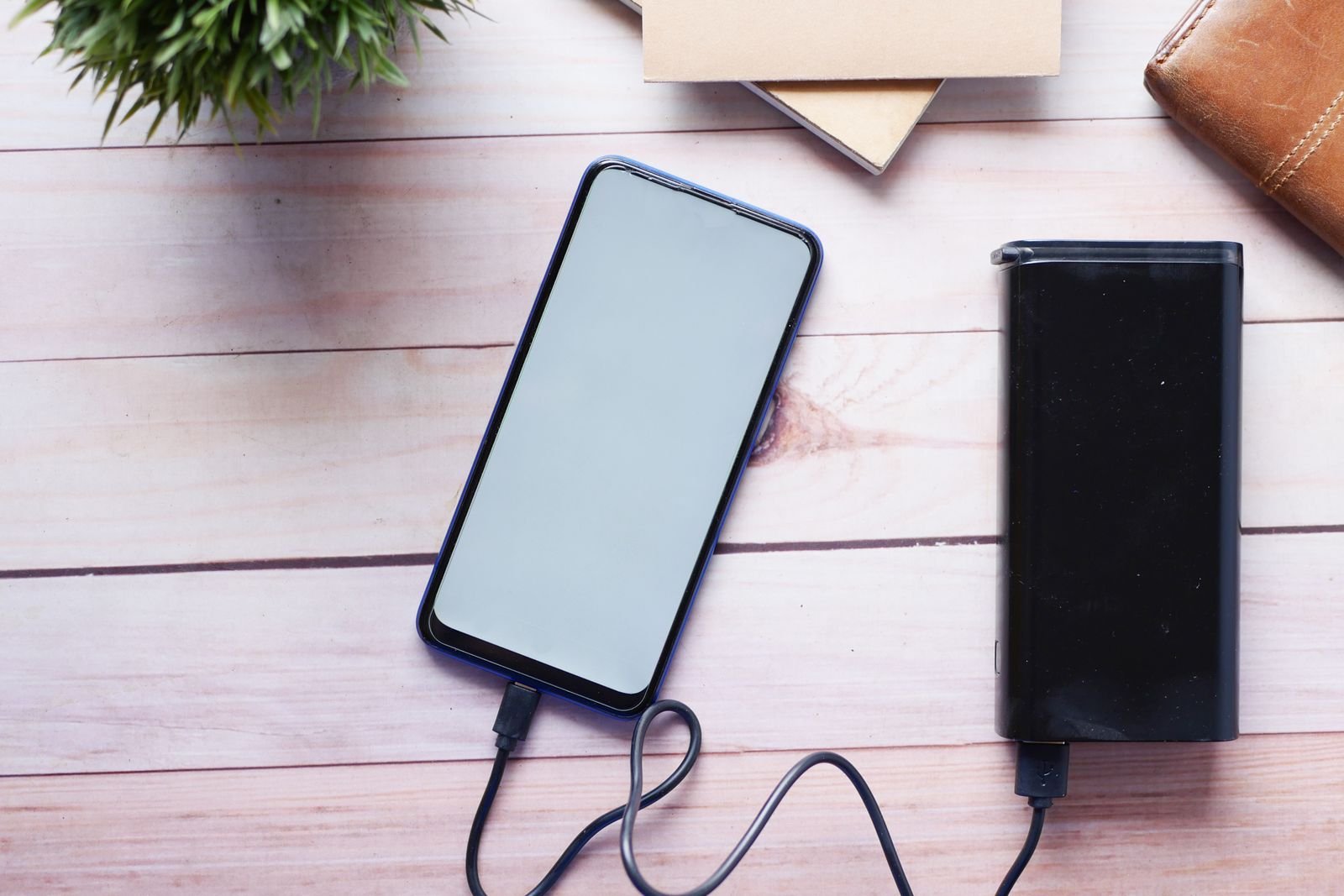
Carry a small power bank for the days that truly demand it. A compact 10,000 mAh bank costs less than a dinner out and can refill most phones almost twice. Keep the bank itself charged, and keep the cable with it, because a power bank without a cable is just a paperweight. This is the one accessory that makes every other tip optional on a hard day.
Three Mistakes That Waste Battery
Most battery advice online is harmless, but a few popular tips actually make things worse. Here are the three worth unlearning.
First, do not close all your apps every time you use them. Modern phones are designed to keep apps paused in memory, and reopening an app from scratch uses more power than leaving it paused. Close an app only when it is misbehaving or stuck. The battery report will tell you which apps deserve to be closed. The rest can stay where they are.
Second, do not install a battery saver app from an app store. These apps promise to clean memory and save power, but they mostly do the opposite. They run constantly in the background, show ads, and fight the operating system, which already manages power better than any third party app can. The built in battery saver mode on your phone is the only one you need.
Third, never put a hot phone in the fridge or freezer. It sounds clever, but the sudden cold pulls moisture inside the phone, and water damage is far worse than warmth. Let a hot phone cool in open air on a hard surface. Five or ten minutes is enough. If it stays hot, unplug it and let it rest before you use it again.
A Simple Routine That Keeps Your Phone Alive All Day
Maya now ends most days with 30 percent or more left, and she never turns off WiFi. Her routine is simple, and it takes about ten minutes to set up once. She checked her battery report and tamed the one app that was eating her afternoons. She lowered her brightness, shortened her screen timeout, and set location to While Using the App. She switched on optimized charging, set a charge limit of 85 percent for ordinary days, and she keeps a small power bank in her bag for the long ones.
The lesson is the same for every phone. Do not start by switching things off. Start by finding the real drain, fix the settings that waste power, and charge in a way that respects the battery. That is how to make your phone battery last longer without turning off WiFi, and it works on any iPhone or Android phone, with every feature you actually use still switched on.
Set aside ten minutes tonight. Open the battery report, note the top three drains, and work through the seven settings above. Check the report again in two days. Most people see the difference on the first charge, and the battery they save today is the battery that is still healthy next year.
Frequently Asked Questions
Does turning off WiFi actually save battery?
Barely. WiFi uses less power than mobile data for the same job, because the router is close by and the signal is strong. Turning WiFi off often makes the battery drain faster, since the phone switches to the mobile network. The exception is a place with no WiFi at all, where the phone keeps scanning for networks. In that case, stop the scanning, not the WiFi itself.
Does dark mode really save battery?
Yes, on phones with OLED screens, which covers most recent iPhones, Pixels and Galaxy phones. A black pixel on an OLED screen is switched off, so dark mode saves real power in apps you use for hours. On older LCD screens the saving is tiny, because the backlight stays on whatever the picture shows.
Is it bad to charge my phone overnight?
Not on a modern phone, as long as optimized charging is switched on. The phone holds the charge at 80 percent overnight and finishes just before you wake up, so the battery is not held at full charge for hours. Charge on a cool bedside table, not under a pillow, and avoid cheap chargers that run hot.
Why does my battery drain fast even when I am not using the phone?
Usually an app is working in the background, or the phone is struggling with a weak signal. Open the battery report and look for background activity and for apps you did not open. Restrict background refresh for the worst offenders, and check whether the drain happens in one place, which points to poor reception rather than a bad battery.
Should I close all my apps to save battery?
No. A paused app in memory uses almost no power, and reopening it from scratch uses more. Close an app only when it is misbehaving, crashing, or showing heavy background use in the battery report. Let the operating system manage the rest.