You are in the middle of a video call when your battery warning pops up, so you reach for the charger and plug it in. The moment the cable clicks into place, your screen starts flickering. Lines flash across the display, the brightness jumps up and down, and the whole laptop suddenly feels unusable. Unplug the charger and everything goes back to normal. Plug it in again and the flicker returns, right on cue.
If that sounds familiar, you are dealing with a common and usually fixable problem. Learning how to fix laptop screen flickering when plugged in starts with one useful fact: the screen is rarely the real problem. Plugging in changes how your laptop handles power, and that change can expose a weak charger, a confused graphics driver, or a display setting that only misbehaves on wall power. Work through the fixes below in order and most people find the cause within half an hour, without paying for a repair.

Why Your Laptop Screen Flickers Only When Plugged In
On battery power your laptop runs a gentle display profile. It dims the screen, lowers the refresh rate on some models, and turns off extra features to save energy. The moment you plug in, the laptop switches to its full power profile. The screen brightens, the refresh rate can change, HDR can switch on, and the charger starts feeding power to every component at once.
That switch is where the trouble starts. A charger that cannot deliver steady power will send small voltage wobbles to the display. A graphics driver with a bug may only trip when the power state changes. A setting such as adaptive brightness or HDR switching may flip the screen between two modes again and again. And in a smaller number of cases, the cable that connects the screen to the body of the laptop has worked loose, and the extra heat and vibration of charging is enough to show it.
The good news is that these causes leave different clues, and a short test tells you which group you are in before you change a single setting.
Start With a Two Minute Test That Points to the Cause
Before trying any fix, run this quick test. It takes two minutes and it stops you wasting time on the wrong solution.
First, unplug the charger and watch the screen for thirty seconds. If the flicker stops the moment you unplug, the trigger is tied to charging, which points to the charger, the outlet, or a power related setting. If the flicker carries on with the charger unplugged, the cause is more likely the driver or the screen itself.
Second, open Task Manager by pressing Ctrl, Shift and Esc together. Watch the Task Manager window closely. If Task Manager flickers along with everything else, the graphics driver or the display hardware is the suspect. If Task Manager stays steady while the rest of the screen flickers, an app is causing the trouble, and the fix is to update or remove that app.
Third, if you have a spare monitor or a television with an HDMI port, connect your laptop to it and plug in the charger. If the external screen stays steady while the laptop screen flickers, the laptop display or its cable is the problem. If both screens flicker, the graphics driver or the power supply is the problem. Write down what you see. Every fix below makes more sense once you know which of these three tests failed.
Fix 1: Swap the Charger and Change the Outlet
The charger is the most common cause of this exact problem, so start here. A laptop charger does more than fill the battery. It powers the whole machine while it charges, and the screen is one of the most sensitive parts to uneven power. A cheap replacement charger, a damaged cable, or a charger with the wrong wattage can all make the screen flicker the moment it is connected.
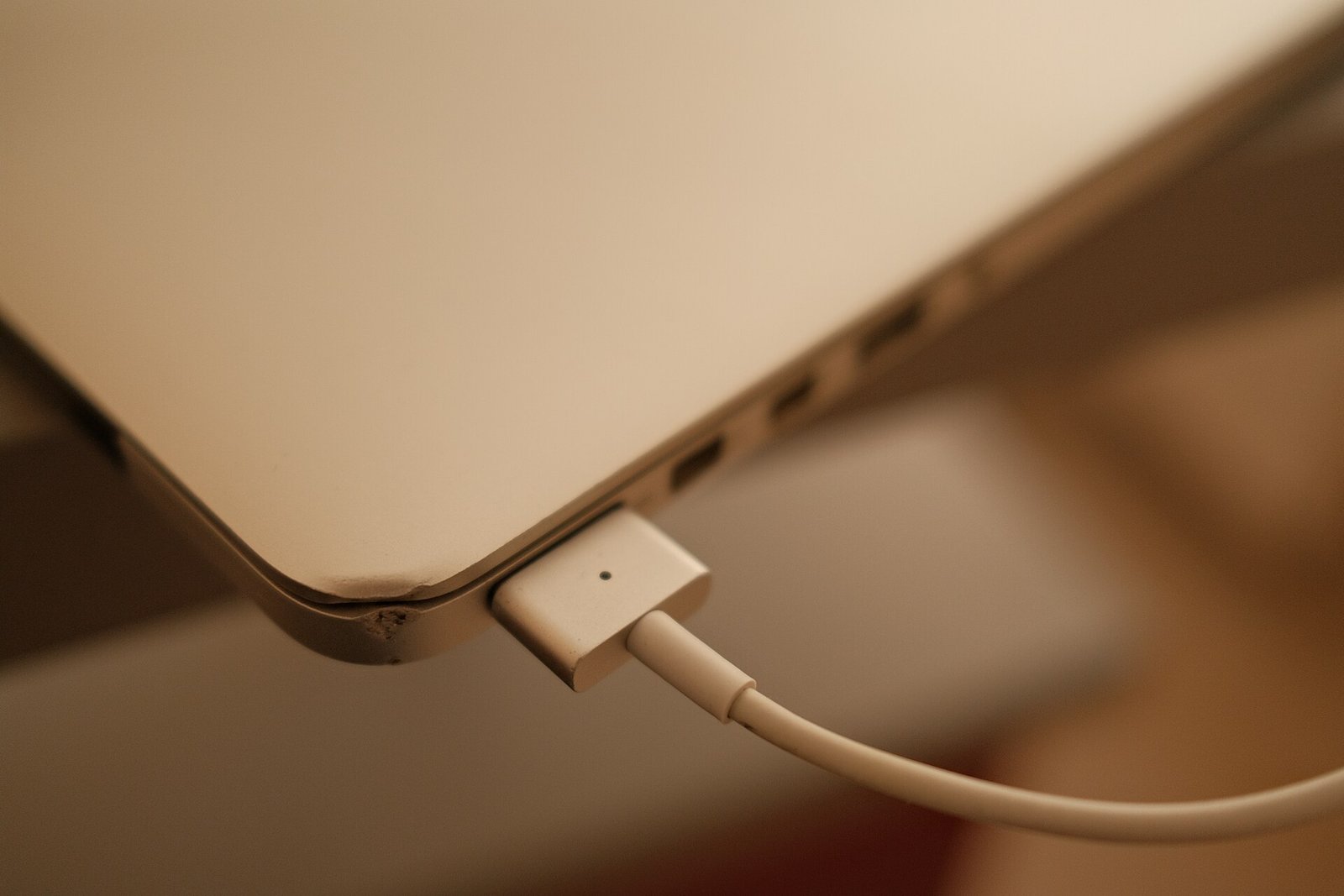
Try the charger that came with your laptop first. If you are using a third party charger, borrow the original or a charger with the exact same voltage and wattage and test it for a few minutes. Check the cable for kinks, fraying near the plug, or a loose fit in the charging port. A plug that wobbles in the port can break and remake the connection many times a second, and each break can make the screen flash.
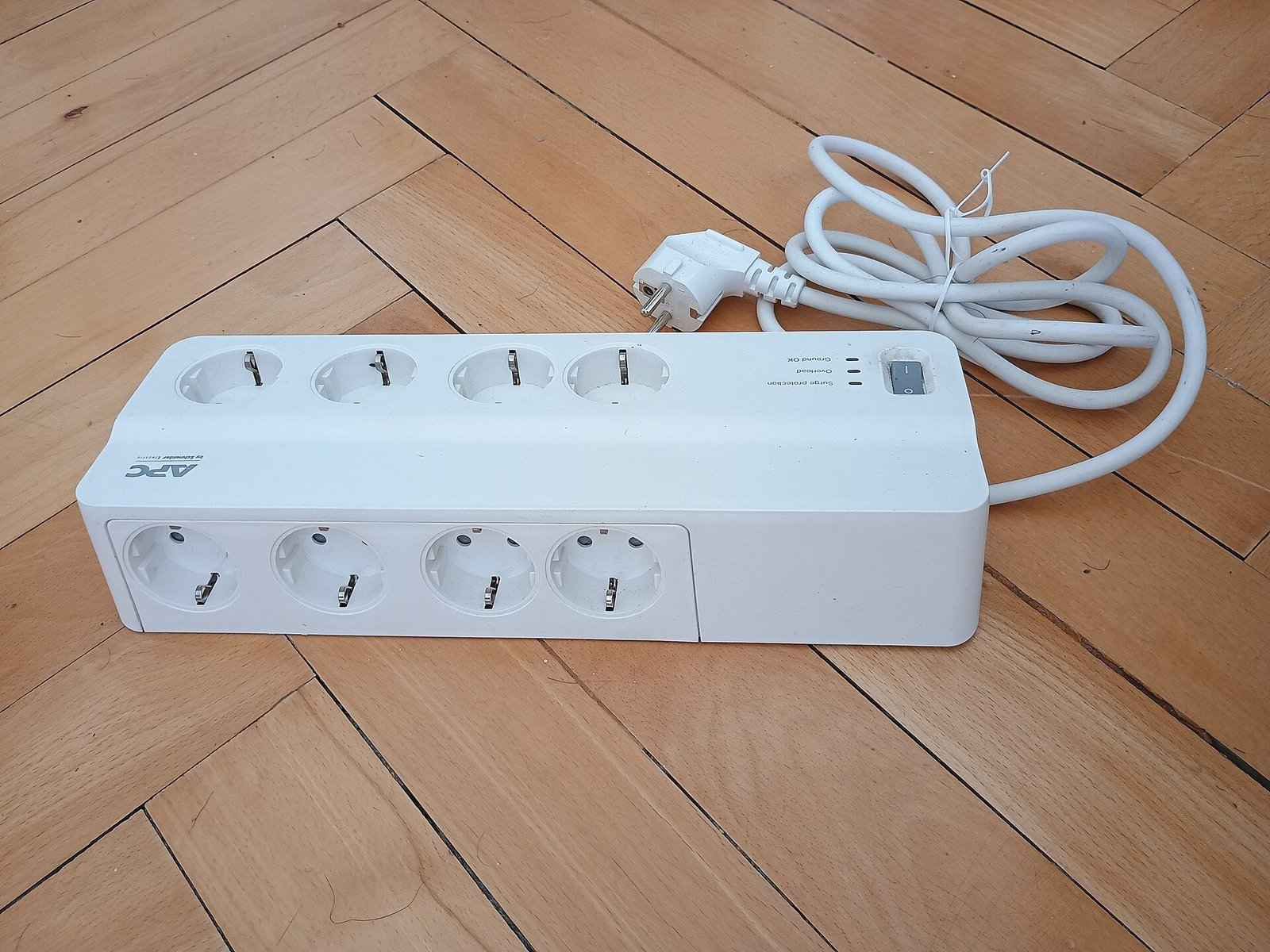
Next, change the outlet. Unplug the charger from any power strip and plug it directly into a wall outlet. Cheap power strips and overloaded extension cords are a classic source of electrical noise, and they can pass that noise straight to your laptop. If you have a second outlet on a different wall, try that one too. A faulty outlet or a room with poor grounding can cause the same symptom, and this test costs nothing.
Heat is another clue. If the charger brick feels very hot to the touch, or smells faintly of burning plastic, stop using it at once and replace it. Heat is hard on chargers of every kind, and the same warning signs show up when a phone overheats while charging. A charger that runs hot is a charger that is struggling, and a struggling charger is a common reason a screen flickers on wall power.
If a different charger on a different outlet stops the flicker, you have found your answer. Replace the faulty charger with a genuine one from the laptop maker or a certified equivalent and the problem should stay gone.
Fix 2: Reset the Graphics Driver in Seconds
If the charger is fine, the next suspect is the graphics driver, which is the software that tells your screen what to show. Windows has a built in shortcut that restarts this driver without restarting the whole laptop. Press the Windows key, Ctrl, Shift and the letter B together. Your screen will go black for a second and you may hear a beep. That is normal. The driver restarts and the screen comes back.
This one shortcut fixes a surprising number of flicker cases, especially when the problem started after a Windows update or after waking the laptop from sleep. It is safe, it takes seconds, and it does not close your apps or delete any files. If the flicker stops after the reset but returns later, move on to the next fix, because a driver that keeps crashing usually needs an update or a clean reinstall.
Fix 3: Update or Reinstall the Graphics Driver
A driver that is out of date or partly corrupted is the single most common software cause of screen flicker. It often shows up only when the laptop switches power states, which is why the problem appears when you plug in and never on battery.
Start with an update. Right click the Start button, open Device Manager, expand Display adapters, right click your graphics card, and choose Update driver. Then choose Search automatically for drivers. If Windows finds a newer driver, install it and restart the laptop.
If the flicker started right after a driver or Windows update, do the opposite. In the same Device Manager screen, open the properties of your graphics card, go to the Driver tab, and choose Roll Back Driver if the button is available. That returns you to the version that worked before.
If neither step helps, do a clean reinstall. Download the latest driver directly from the website of your laptop maker, or from Intel, NVIDIA or AMD if you know which graphics chip your laptop uses. Uninstall the current driver from Device Manager, tick the box that deletes the driver software if you see it, restart the laptop, and then install the fresh download. Drivers from the maker are almost always better than the generic ones Windows installs on its own, and this step resolves flicker that survives a simple update.
Fix 4: Match the Refresh Rate and Turn Off Adaptive Brightness
Your screen redraws itself many times a second, and that number is called the refresh rate. When you plug in, some laptops switch refresh rates automatically, and a rate your screen handles poorly will show up as flicker. A wrong refresh rate is also a common cause of flicker on external monitors, so this fix is worth checking even if you only use the laptop screen.
Open Settings, go to System, then Display, then Advanced display. Look at the refresh rate shown for your screen. If it offers 60Hz, choose that and test for a few minutes. Higher rates look smoother, but 60Hz is the safest baseline for testing, and you can raise it again once the flicker is gone.
While you are in the display settings, turn off adaptive brightness. This feature changes the brightness based on the light in your room or the content on screen, and on some laptops it fights with the power change that happens when you plug in. Go to Settings, System, Display, and switch off Change brightness automatically when lighting changes if you see it.

Intel laptops have one more setting to check. Intel graphics include a feature called Display Power Saving Technology that lowers the refresh rate on battery to save energy. Open the Intel Graphics Command Center, go to System, then Power, and turn off Display Power Saving Technology for both battery and plugged in modes. AMD laptops have a similar feature called Vari Bright in the AMD Software settings. Turn that off too. Both features save a small amount of power and both are known to cause flicker when the laptop changes power state.
Fix 5: Stop HDR From Switching When You Plug In
HDR makes videos and photos look richer, but on many laptops it also causes a visible flash when it switches on or off. Windows turns HDR off automatically on battery to save power, and turns it back on when you plug in. That switch can make the screen go black for a moment, flash, or flicker repeatedly if the setting is unstable.
Open Settings, go to System, then Display, and select HDR. If you see an option that says Turn off HDR when my PC is running on battery, uncheck it so HDR stays in the same state whether you are plugged in or not. If you do not watch HDR video or play HDR games, the simplest fix is to turn HDR off entirely. The screen will look the same for everyday work, and the flicker that came with the switching will stop with it.
Fix 6: Change the Power Plan So the Display Stays Steady
Windows power plans control how aggressively your laptop saves energy, and some of their settings can starve the display of steady power. A few changes here can calm a flickering screen without touching any hardware.
Open Control Panel, go to Hardware and Sound, then Power Options, and click Change plan settings next to your active plan. Then click Change advanced power settings. Expand PCI Express and set Link State Power Management to Off for both battery and plugged in. This stops Windows from cutting power to the graphics card in a way that can show up as flicker.
In the same window, expand Intel Graphics Settings if you see it and set both battery and plugged in to Maximum Performance. Then expand Display and check that the screen is not set to turn off after an unusually short time. Save the changes and plug in the charger to test. If the flicker is gone, one of these power settings was the cause.
Fix 7: Check the Battery and the Display Cable
If every software fix has failed, look at the hardware. The two parts worth checking are the battery and the cable that runs through the hinge to the screen.
A swollen battery can press on the parts around it and cause flicker, and it can be a safety risk. Signs to watch for are a trackpad that feels raised or hard to click, a case that no longer sits flat on a desk, a gap opening along the seam of the laptop, or a battery that drains far faster than it used to. If you see any of these signs, stop using the laptop, do not try to remove a sealed battery yourself, and take the machine to a repair shop. A swollen battery needs professional handling.
The display cable is the other hardware suspect. It runs from the body of the laptop through the hinge to the screen, and years of opening and closing the lid can wear it. A useful clue is whether the flicker changes when you move the lid. Open and close the screen slowly through its range. If the flicker comes and goes at certain angles, the cable is likely loose or damaged. Replacing it is a job for a repair shop, since it means opening the screen assembly.
Dust and crumbs around the ports can make a loose connection worse, so keeping the machine clean helps in a small way too. Our guide to cleaning a laptop keyboard without compressed air covers the safe way to clear dust from the keyboard and vents without pushing dirt deeper into the machine.
Fix 8: Update the BIOS and Chipset Drivers
The BIOS is the low level software that starts your laptop before Windows loads, and it controls how power is delivered to the screen and the graphics chip. Laptop makers sometimes release BIOS updates that fix exactly this kind of power related flicker, so it is worth checking if the software fixes above did not work.
Go to the support page for your exact laptop model on the website of the maker, such as Dell, HP, Lenovo or ASUS, and look for BIOS and chipset driver updates. Download only the files listed for your exact model. Install the chipset driver first, then the BIOS update if one is available. Keep the charger connected during a BIOS update and do not turn the laptop off or close the lid while it runs. A BIOS update that is interrupted can leave the laptop unable to start, so only run it when you have a stable power connection and a few quiet minutes.
When It Is Time to Get the Laptop Repaired
Most flicker that appears only when plugged in is fixed by a charger swap or a driver update. A few signs point to a repair instead. Get the laptop looked at if the screen flickers on the BIOS or startup screen before Windows loads, if you see permanent lines, dead pixels or colour distortion, if the flicker started right after a drop or a knock, or if the screen goes black and stays black when you plug in.
When you take it in, tell the technician exactly what you tested: that the flicker appears only on charger power, whether an external monitor flickers too, and which fixes you already tried. That short history saves diagnostic time and it helps the shop quote the job fairly. In many cases the repair is a replacement charger, a new display cable, or a battery swap, and none of those should cost as much as a new laptop.
How to Fix Laptop Screen Flickering When Plugged In Step by Step
If you want the shortest path to a fix, work through this list in order and stop as soon as the flicker is gone.
- Plug in the original charger and a different wall outlet, with no power strip in between.
- Reset the graphics driver with Windows key, Ctrl, Shift and B.
- Open Task Manager to check whether the whole screen flickers or only your apps.
- Update the graphics driver, or roll it back if the problem started after an update.
- Set the refresh rate to 60Hz and turn off adaptive brightness.
- Turn off HDR, or stop it switching when you plug in.
- Turn off Display Power Saving Technology or Vari Bright.
- Update the chipset driver and the BIOS from the laptop maker website.
- Check for a swollen battery or a flicker that changes with the lid angle, and book a repair if you find either.
Conclusion
A laptop screen that flickers only when plugged in feels alarming, but it is usually a power or software problem rather than a dying screen. The charger and the outlet are the first things to test, because uneven power is the most common cause and the cheapest to rule out. After that, the graphics driver reset, a driver update, and the refresh rate and HDR settings cover almost every remaining case. Only when the flicker survives all of those steps, or shows up before Windows loads, should you start thinking about a hardware repair.
Learning how to fix laptop screen flickering when plugged in is mostly about testing before you spend. A two minute check with Task Manager and a spare charger tells you whether the fault is in the power path, the driver, or the display itself, and that answer decides which fix will actually work. Start with the charger, work down the list, and you will most likely have a steady screen again before the day is over.
Frequently Asked Questions
Why does my laptop screen flicker only when I plug in the charger?
Plugging in changes the power profile of your laptop. The screen brightens, the refresh rate can change, and HDR can switch on. A weak charger, a faulty outlet, a driver bug, or one of those settings can all cause flicker that only appears on wall power and never on battery.
Can a faulty charger damage my laptop screen?
A faulty charger can send uneven power to the laptop, and over time that can stress the display and other parts. It is rare for a charger to break a screen outright, but a charger that runs very hot, smells of burning, or has a damaged cable should be replaced at once rather than kept in use.
Will resetting the graphics driver delete my files?
No. Pressing Windows key, Ctrl, Shift and B only restarts the graphics driver. Your files, apps and open windows are untouched. The screen goes black for a second and then comes back, and you can carry on working straight away.
Why does the flicker stop when I unplug the charger?
On battery power the laptop uses a gentler display profile with lower brightness and fewer features switched on. That profile avoids the faulty charger, the HDR switch, and the power saving features that cause the flicker, so the screen looks normal until you plug in again.
How do I know if the flicker is a hardware problem?
Try an external monitor and watch the startup screen. If the flicker appears before Windows loads, or if it changes when you move the lid, the cause is likely the display, its cable, or the battery. If an external monitor flickers too, the graphics chip or driver is the more likely cause.